Free container of Orihost Builds Navidrome
Advantages and Disadvantages of Free Containers in Orihost:
Advantages: Free, Unlimited Traffic
Disadvantages: Maximum 1.5g Disk(Approximately 300-400 songs), No DNS or SSL, NO 443 PORT, Dockeer alive need renew
Building Method
1.Sign up Orihost
Open WEB, Click right Panel–>Free ** Area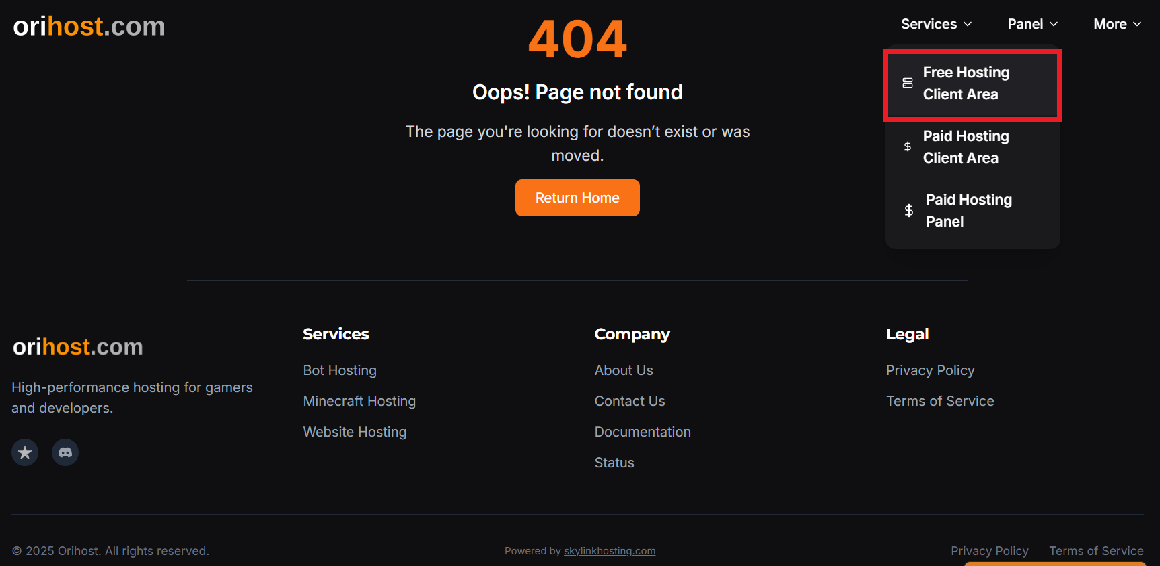
Come to the login-up Page,Click ‘Create account’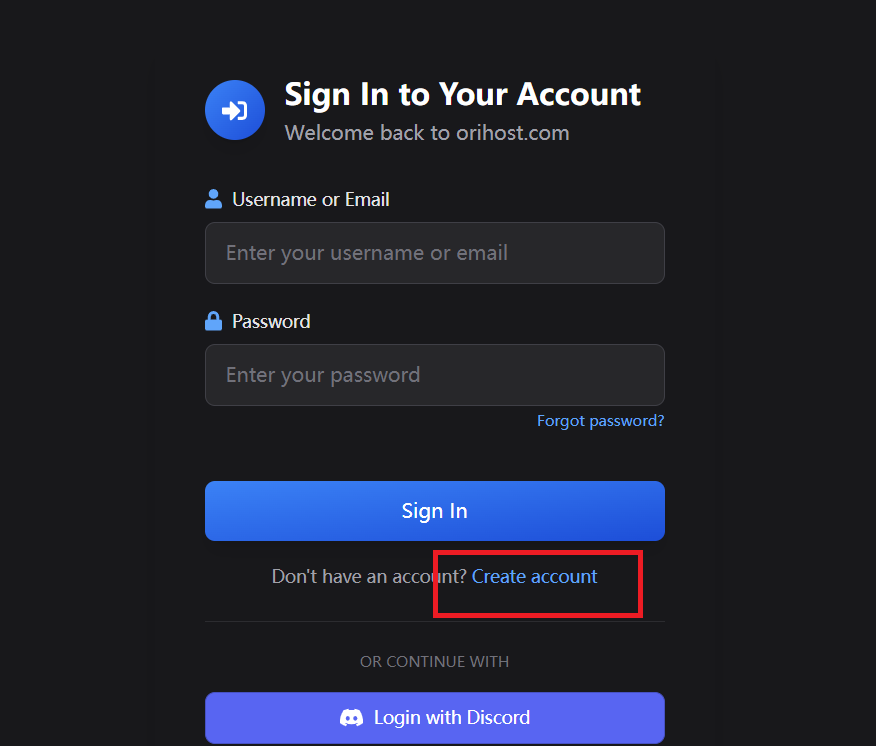
Pages shows the cloudfale verification,click it to finish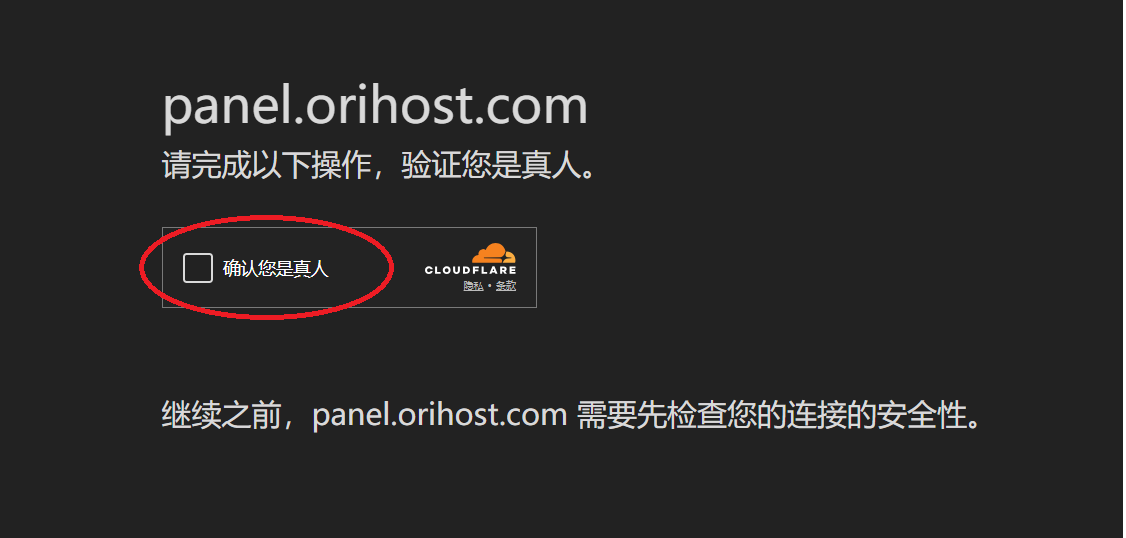
Jump to the registration page and fill in yourself informations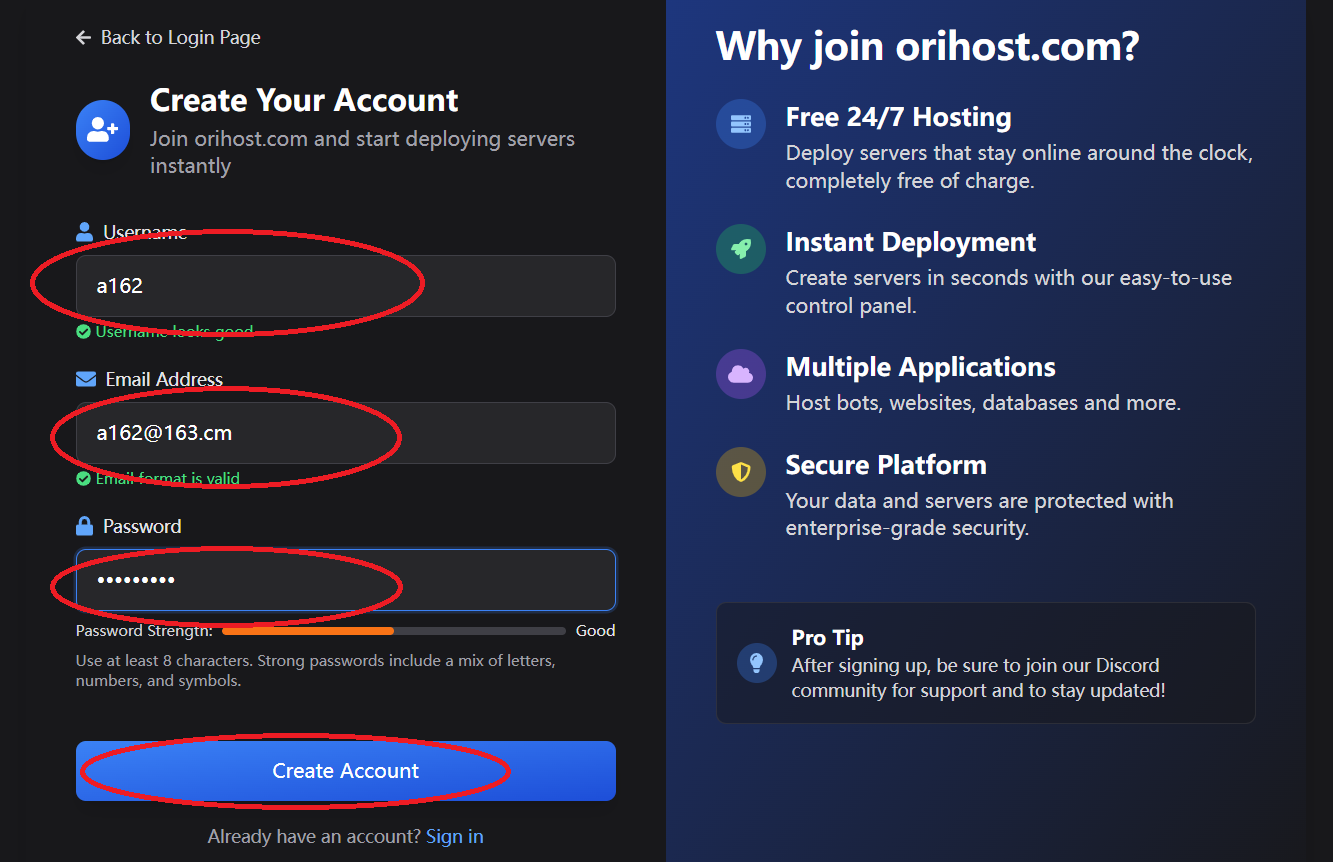
Login to your registered email, copy the Orihost verification link into your browser and ENTER it.
2.Log in Orihost and Create a container server
Open Login Page, Fill your email and password to sign in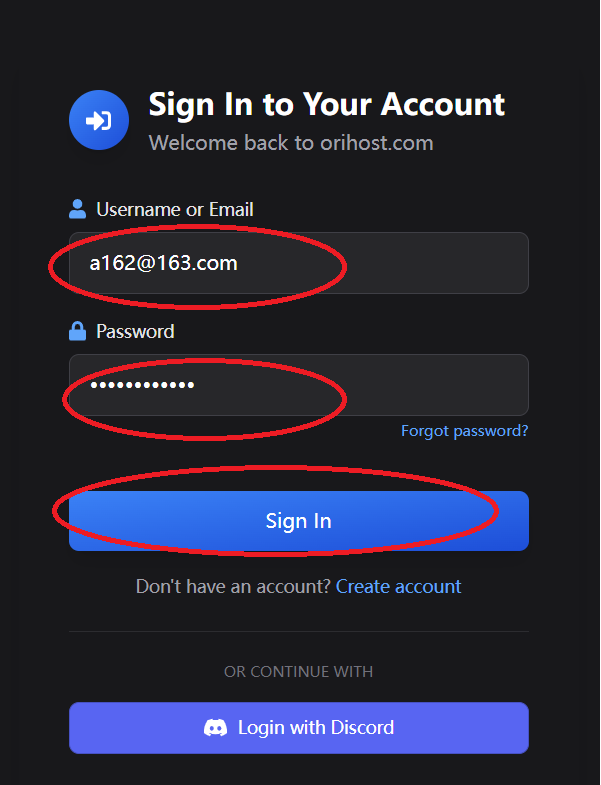
Jump to the panel page, the icons on the left are Container, account, Shopping Cart and Personal Information.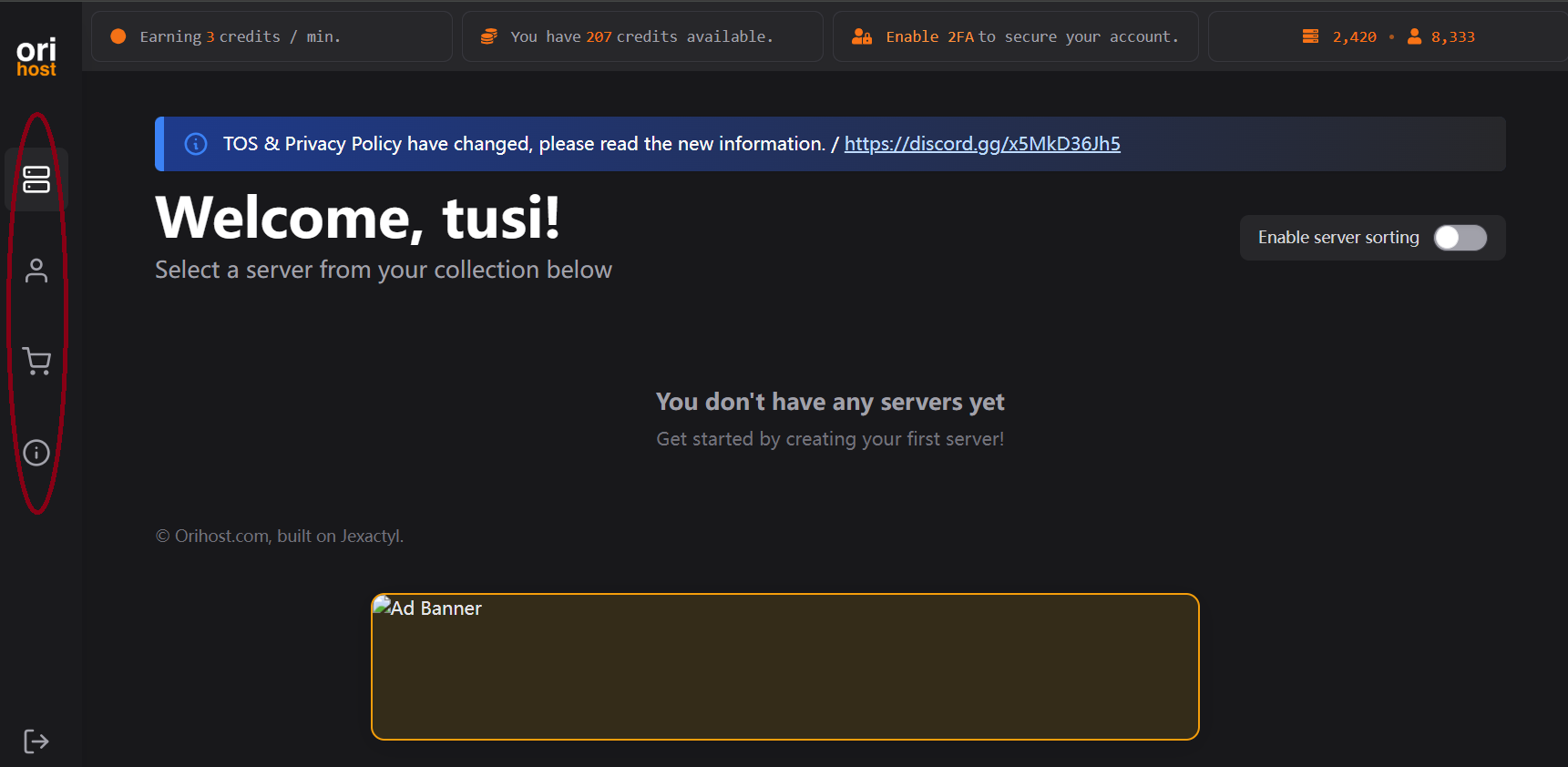
Click on ‘personal information’, you can see the Limit of container’s resources
Click on the ‘shopping cart’, then click ‘create server’ to create a container.
Note: Server Resources are BUSY, and there may not be any available containers. Check it again after 8 PM.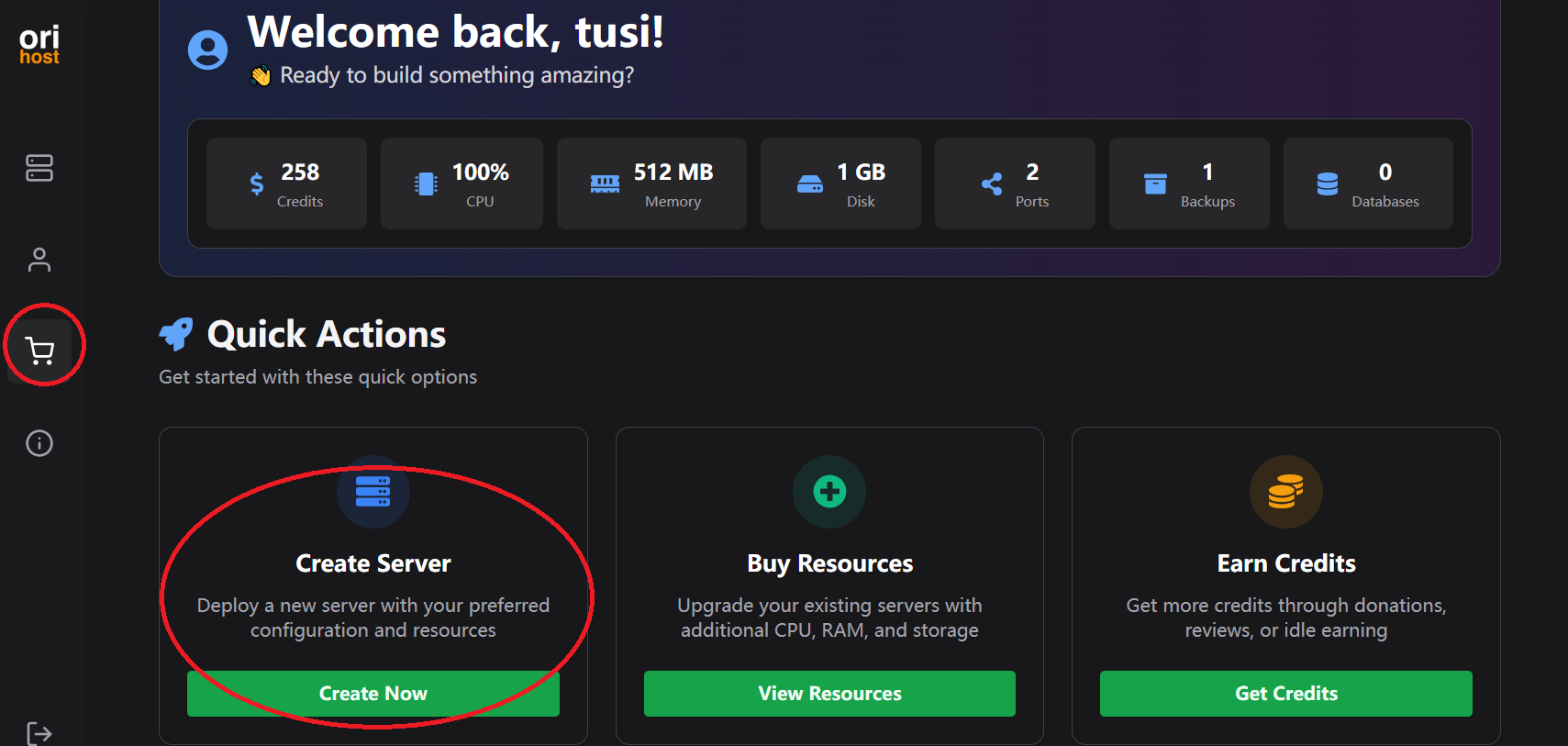
Next, go to ‘Basic details’, where you can fill in the server name and description.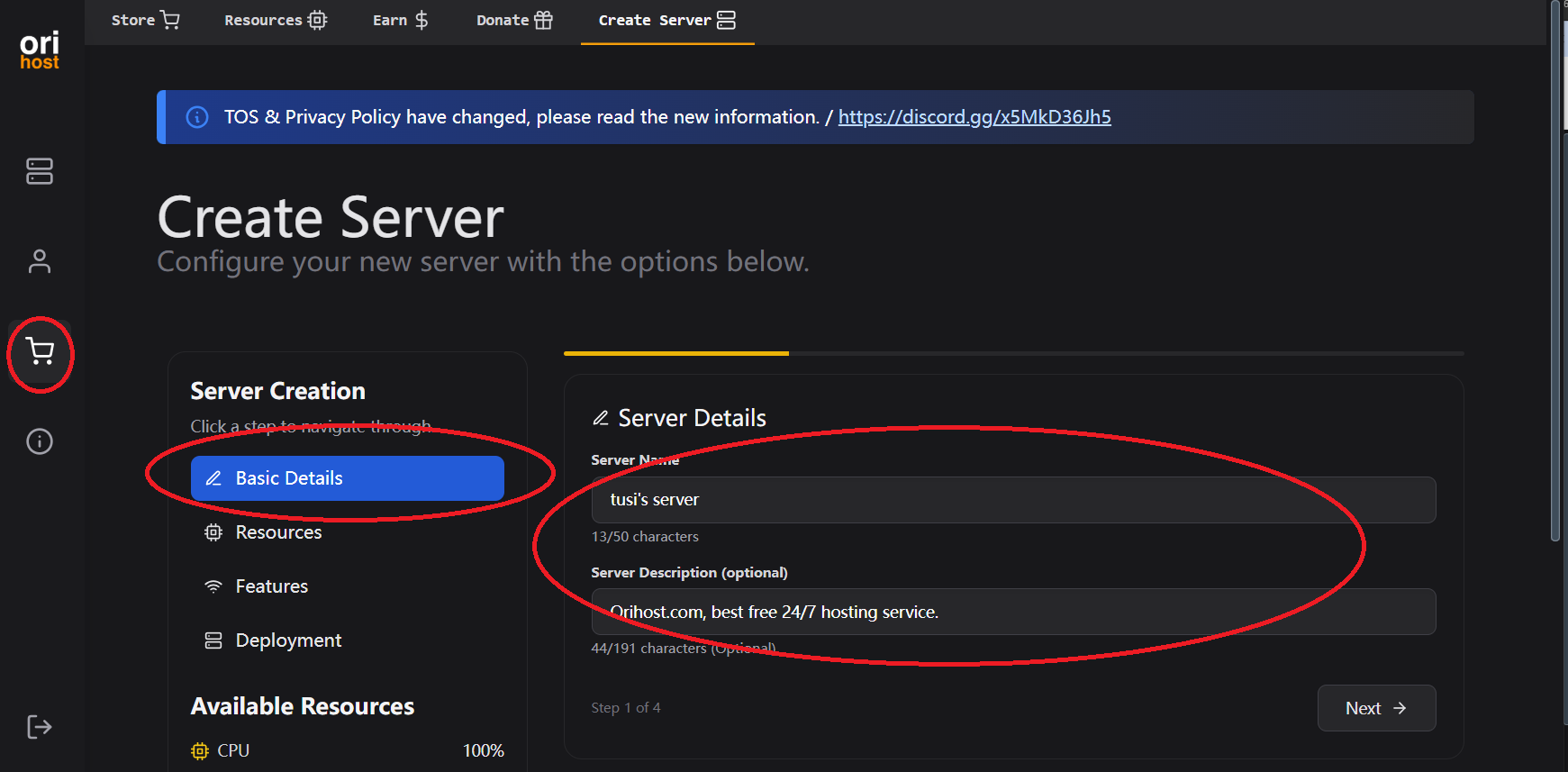
The next step goes to ‘Resources’, where you can configure CPU, memory, and disk, the maximum limits set in personal information.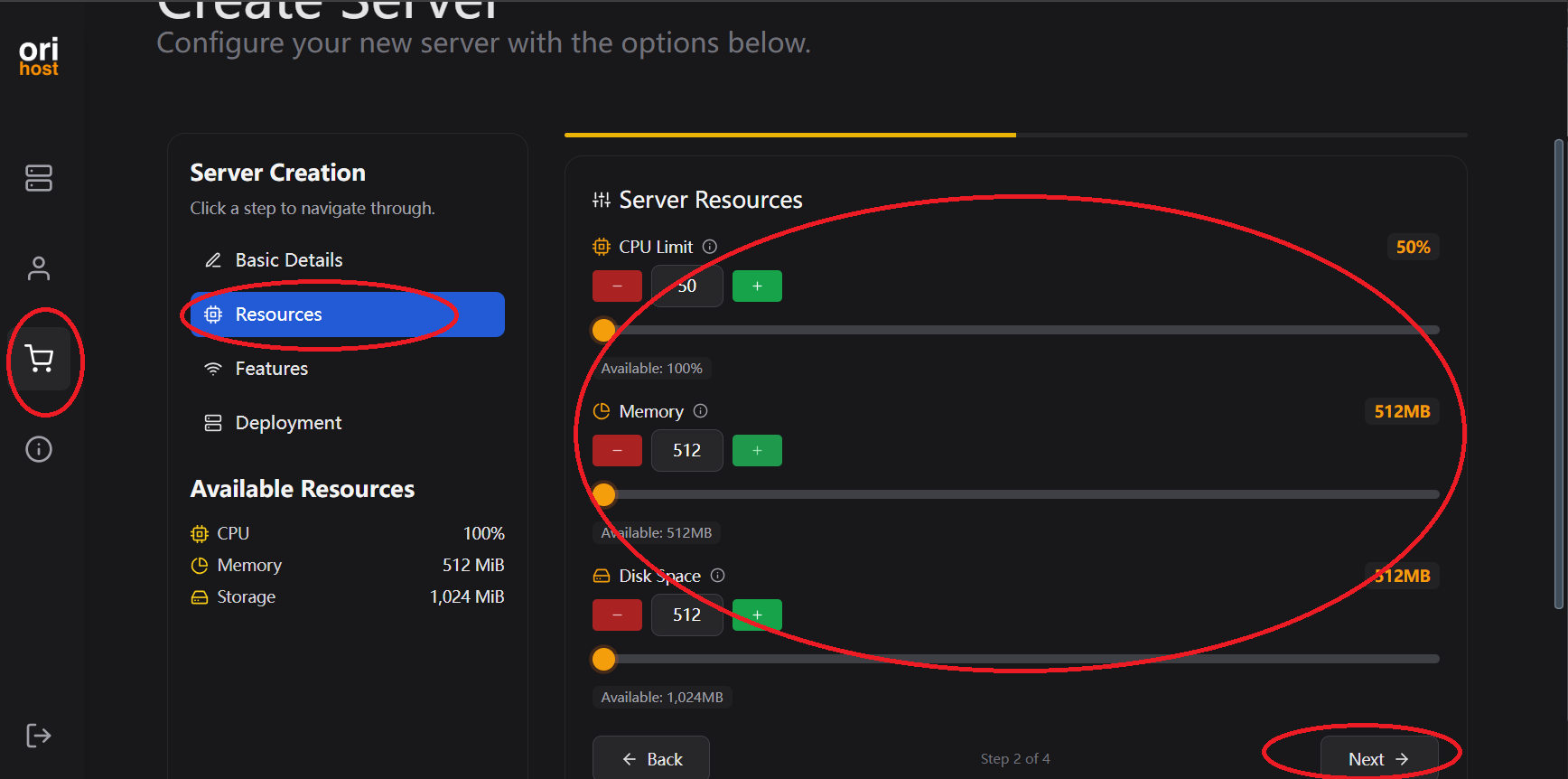
The subsequent step comes to ‘Features’, you can configure the server ports, backup count, and database (currently, only one port is allowed, the others are two).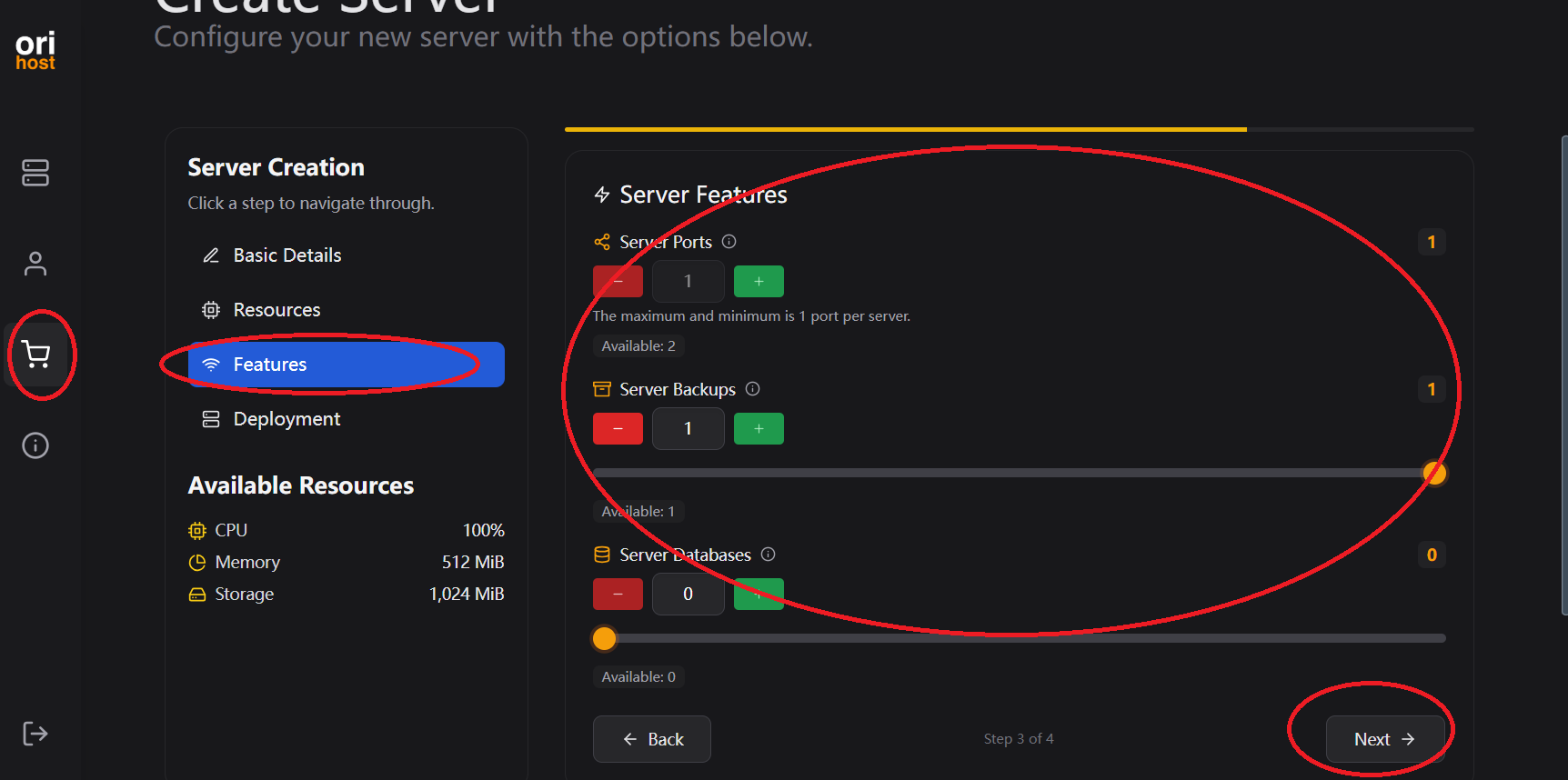
The end step is ‘Deployment’, which configures the Server location, nest and egg.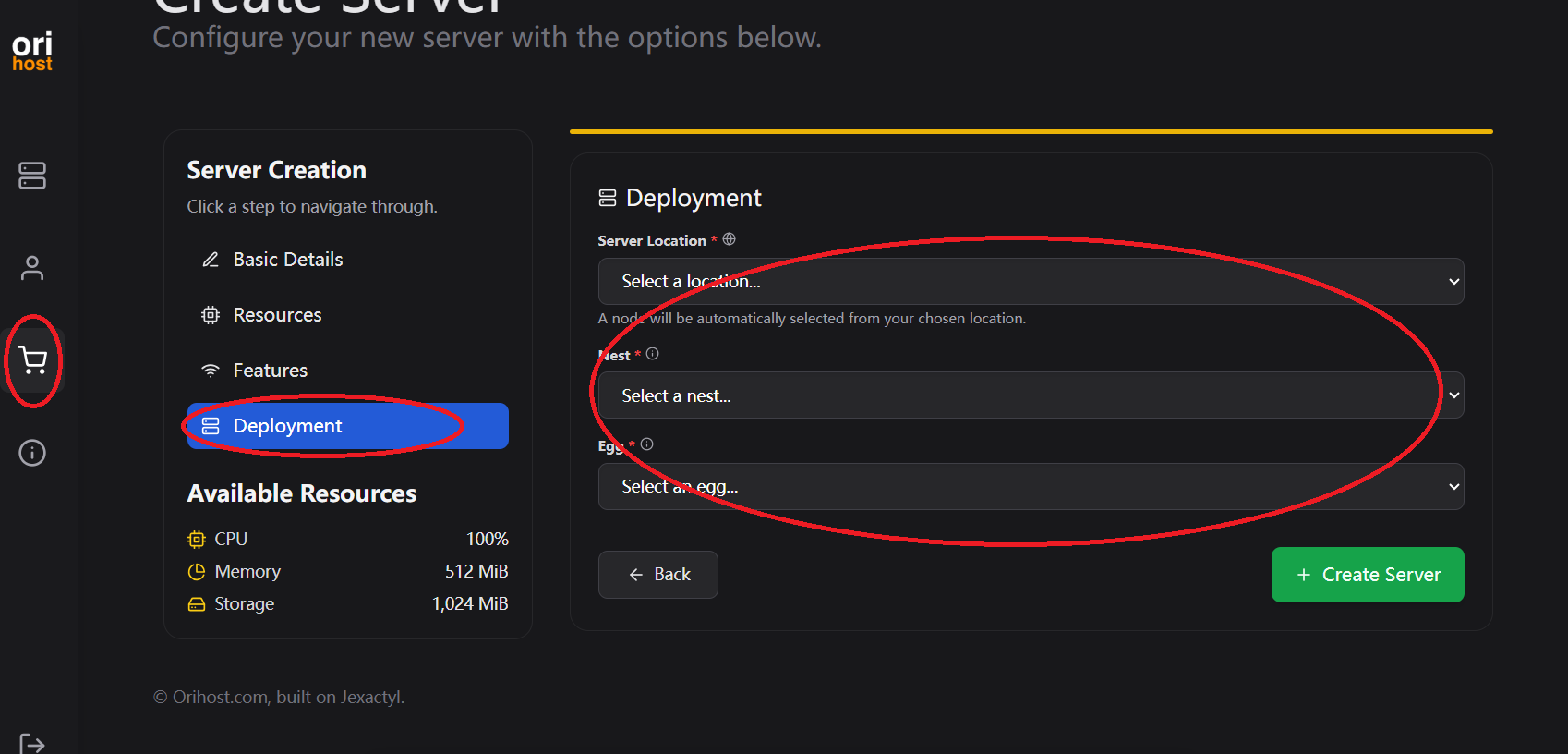
Select the ‘Coding Languahes’ and ‘Node.js’ according to the image below (location are only US and Germany)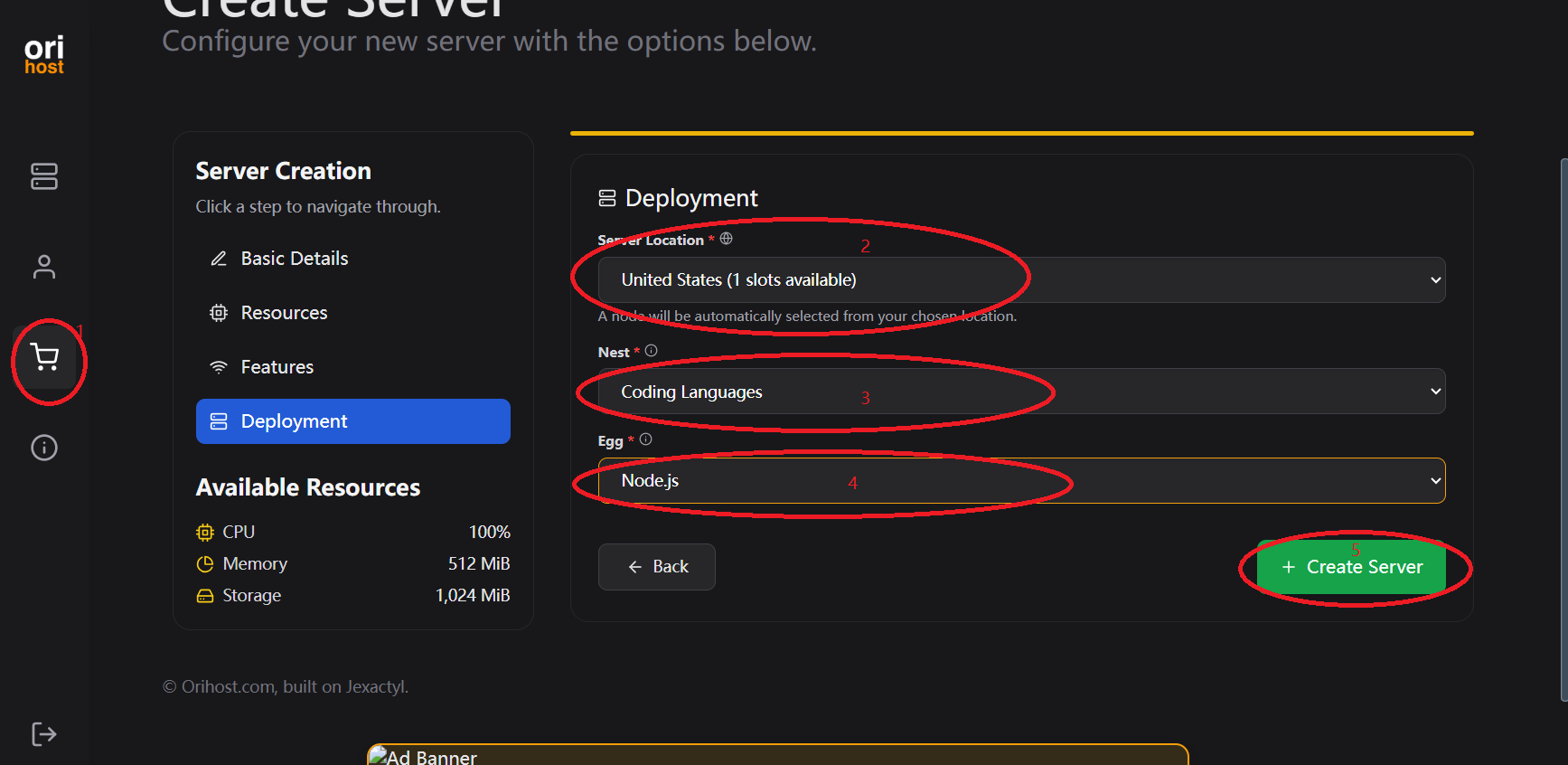
Click ‘Create Server’, and the system will allocate resources. Wait about 1 minute for the installation, and by default, it will directly jump the container area.
3.Deployment Navidrome
Wait a moment. The installed container will be completed, you can see the container of name, IP and port. Click on the name to enter the console.
Enter into the console, and you can see ‘renew’ on the right (this container needs to be renewed), as well as ‘Address’.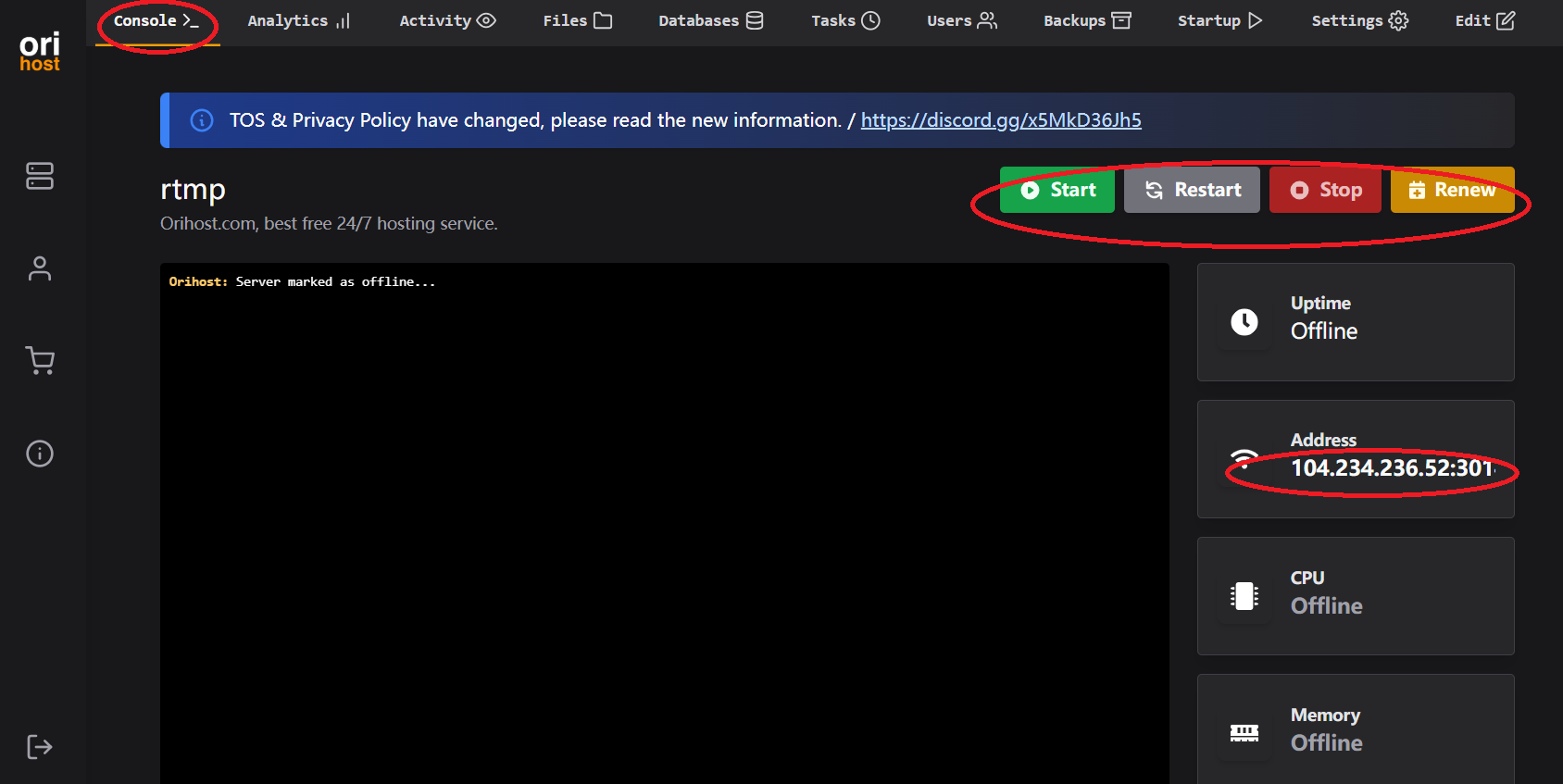
Next, change to the ‘Files’ above, see the ‘New File’ button below, click it and create an ‘index.js’ file.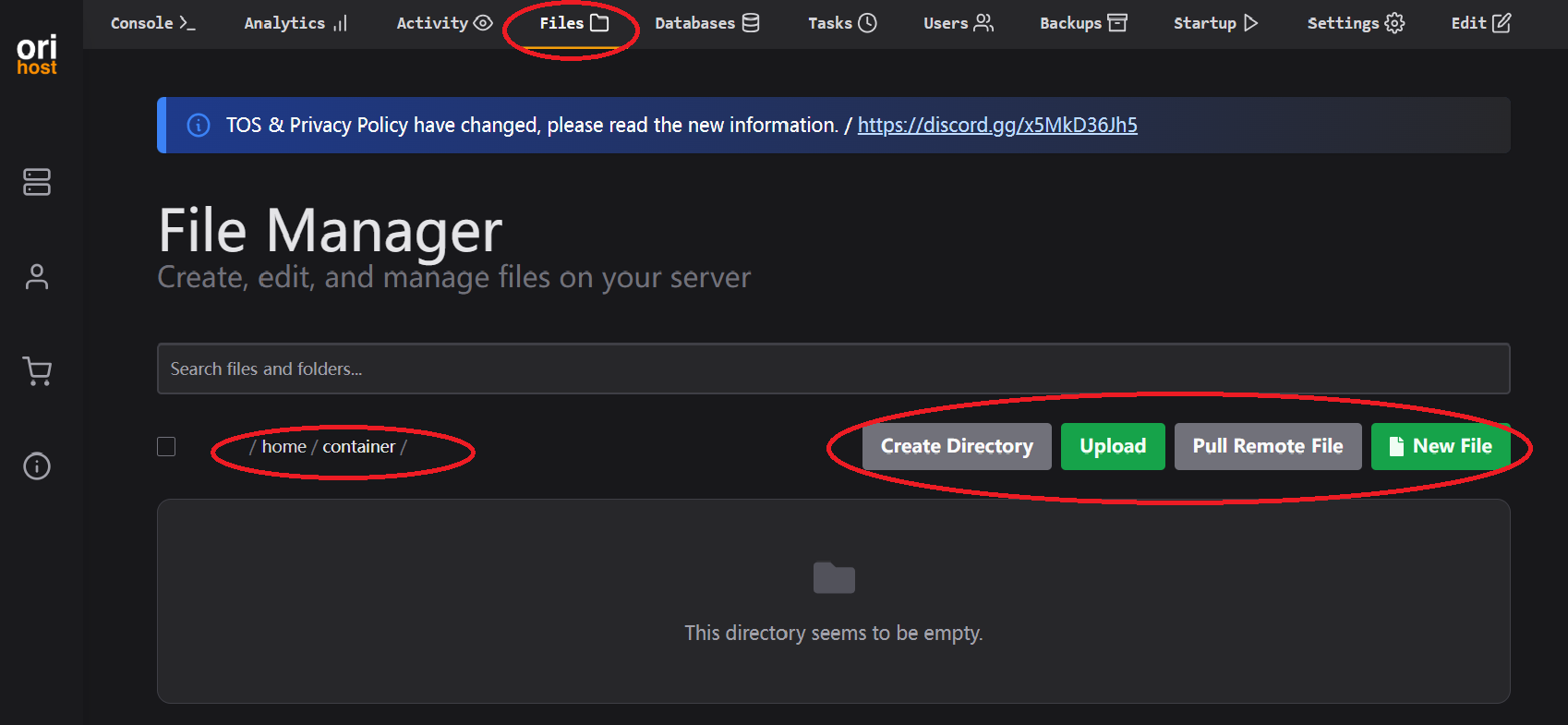
Enter the edit page, copy the ‘code below’ or open the link index.js to fill in
1 | |
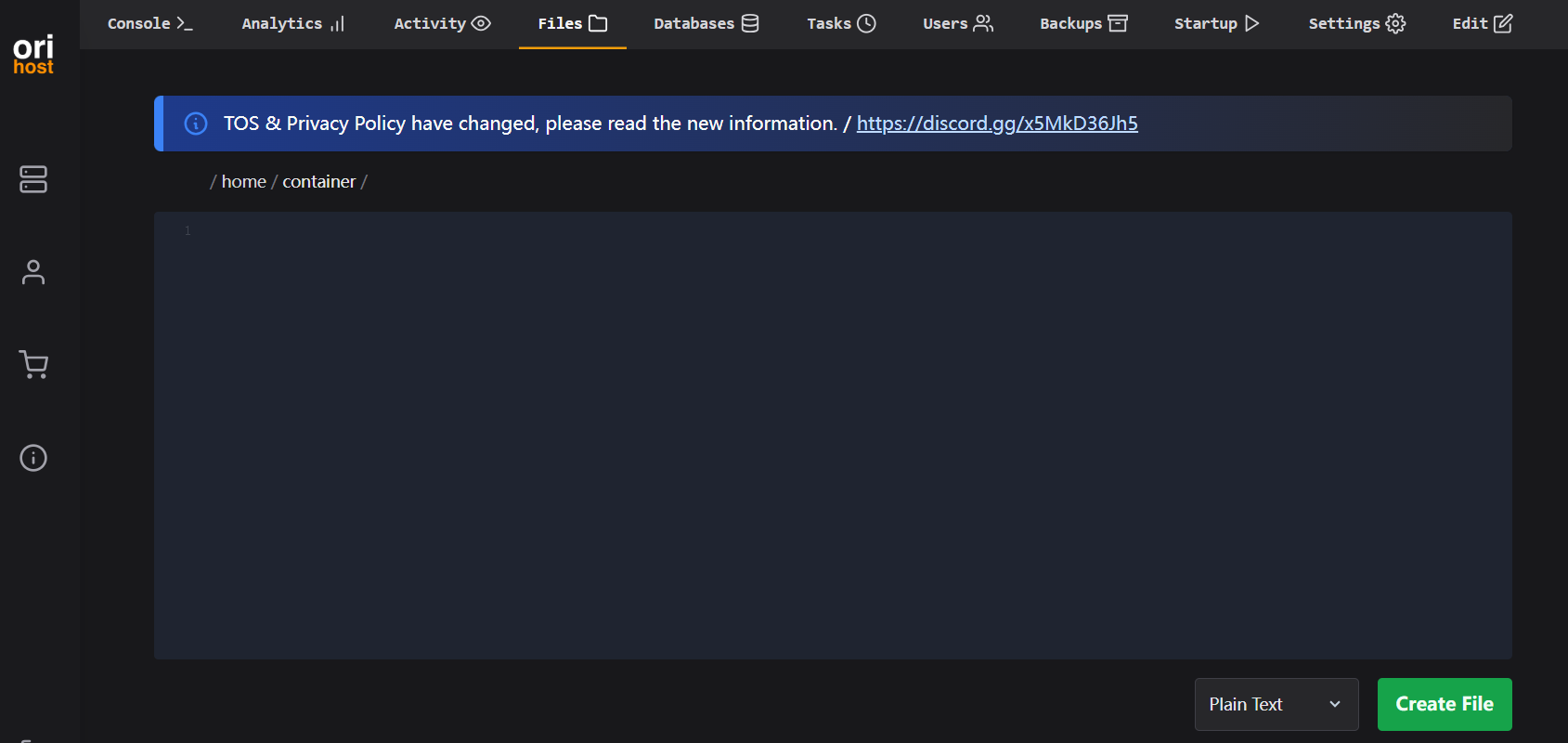
Click ‘create files’, enter the ‘File name’ as index.js, then click ‘create files’ again.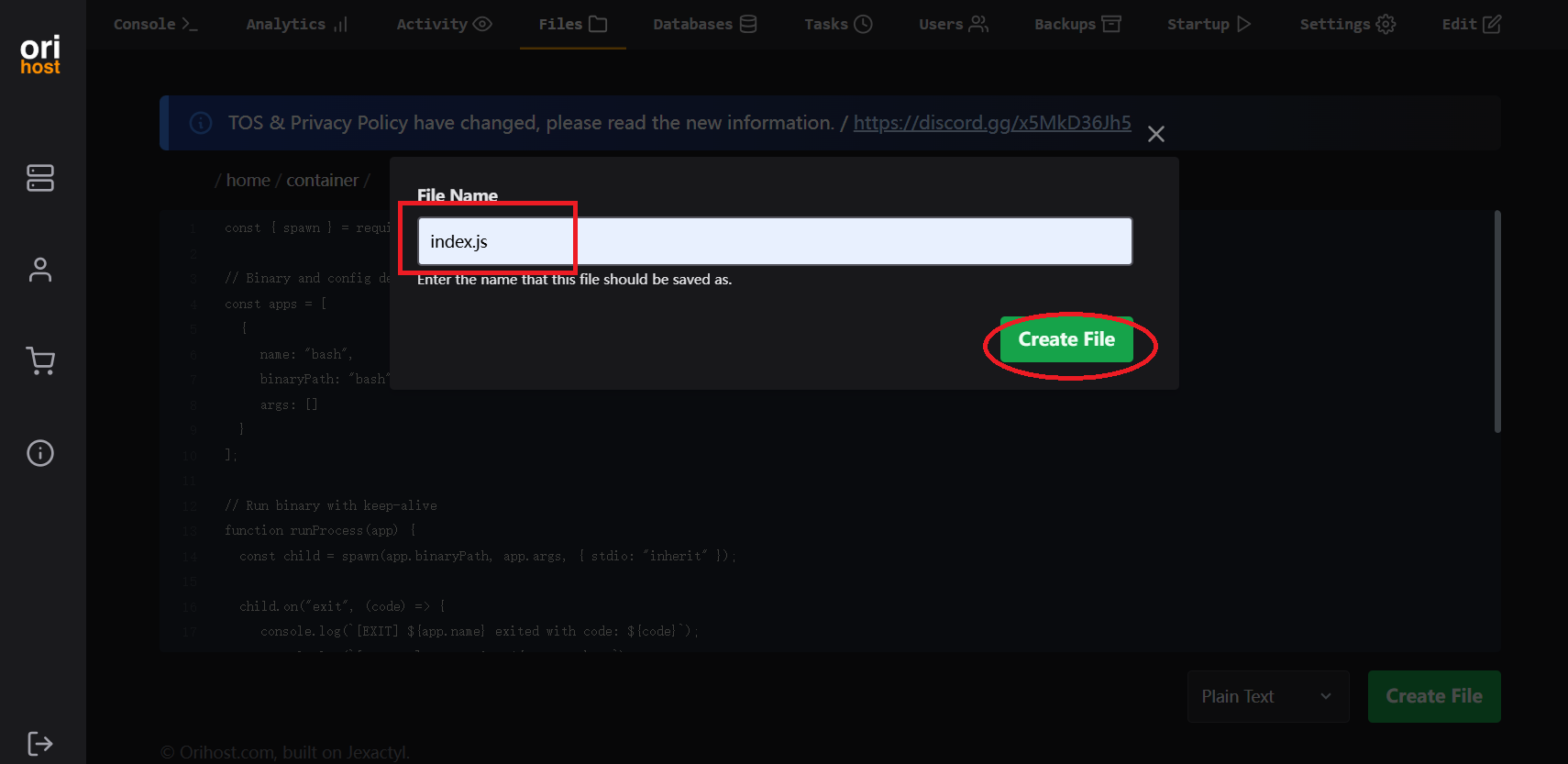
After created index.js, it displays on the below image, then click on the ‘console’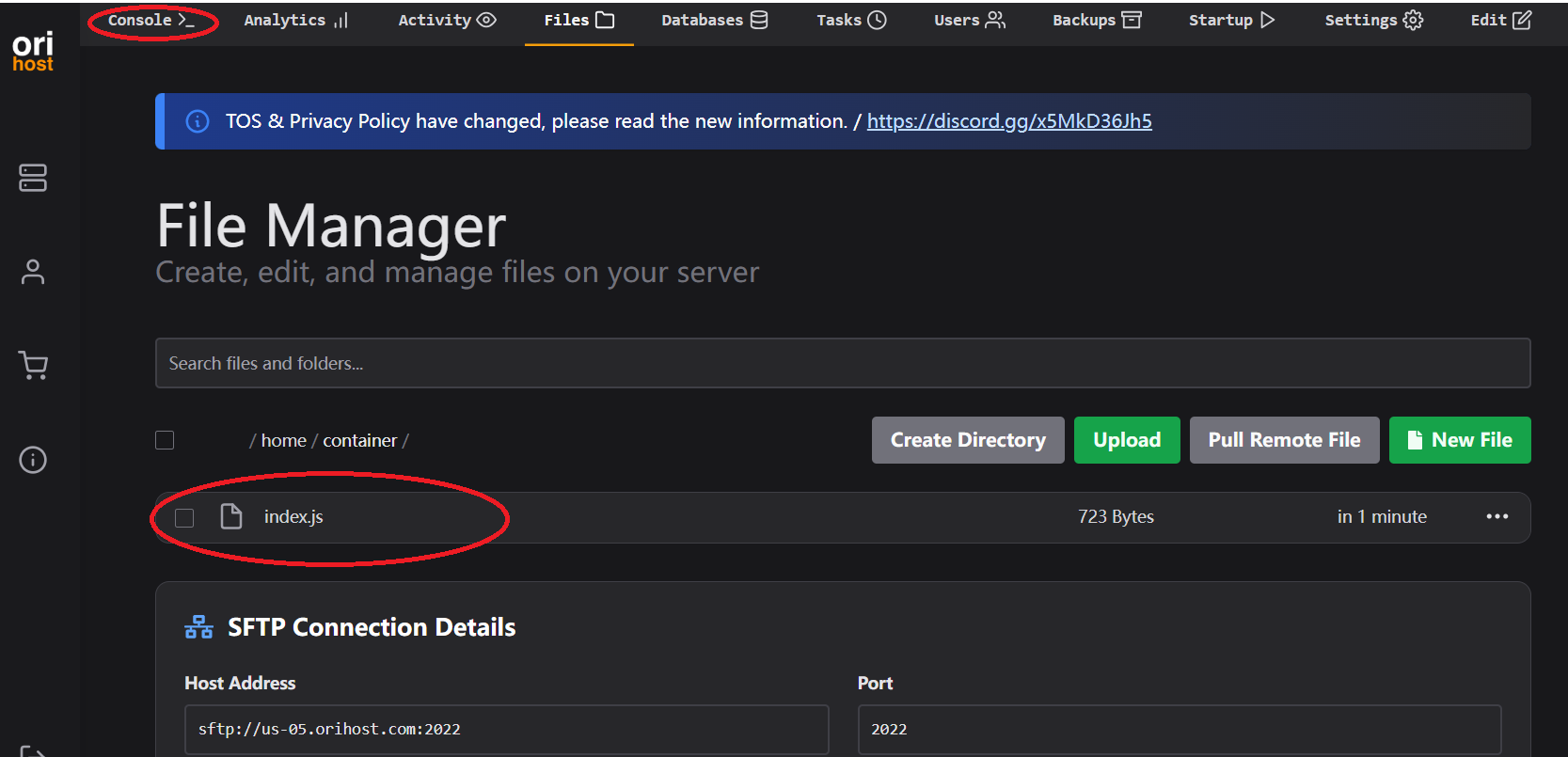
At the console, click ‘start’ to launch, then click the ‘Address’ below and copy the port.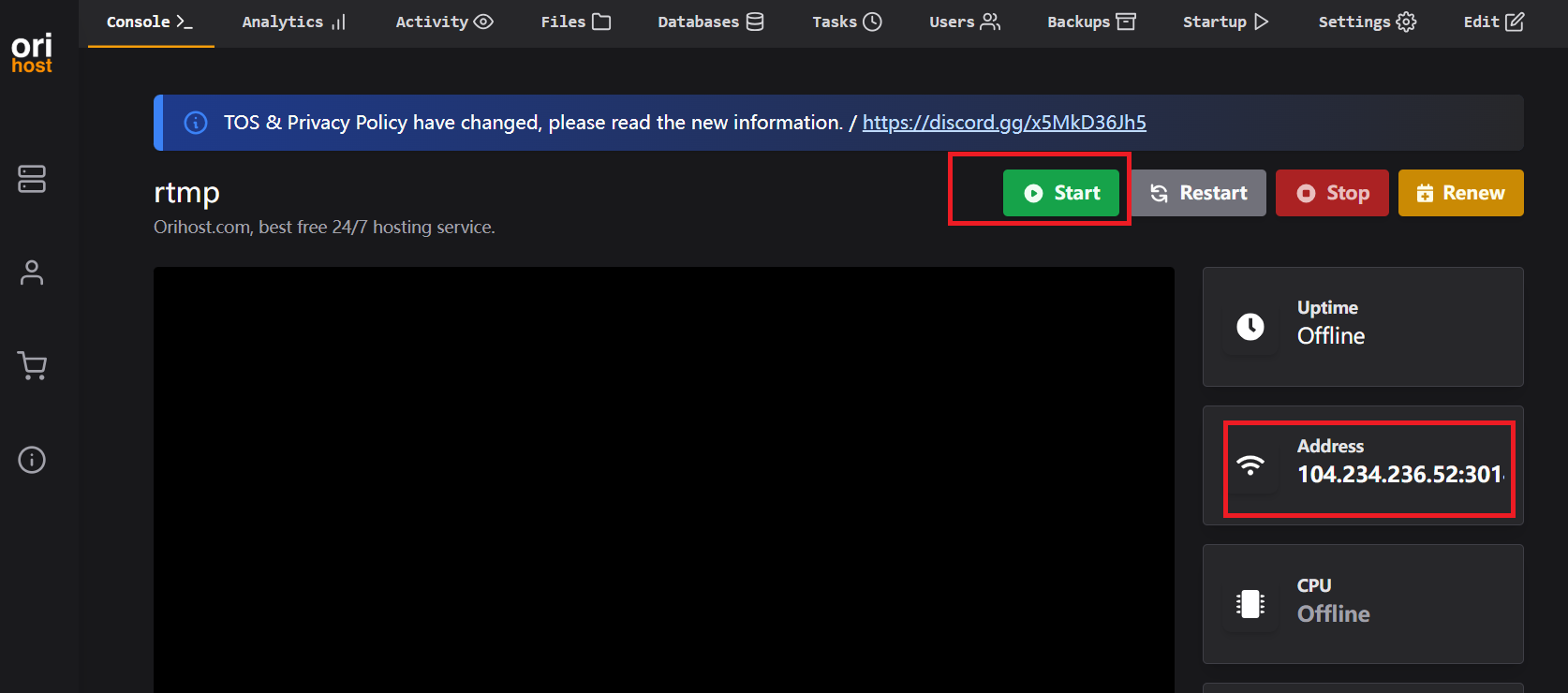
After the text on the screen stops, copy and modify the ‘code below’ into the interface
Key point: Change your ‘PORT’ number in ADDRESSS (for example, 30141), then press the ENTER key.
1 | |
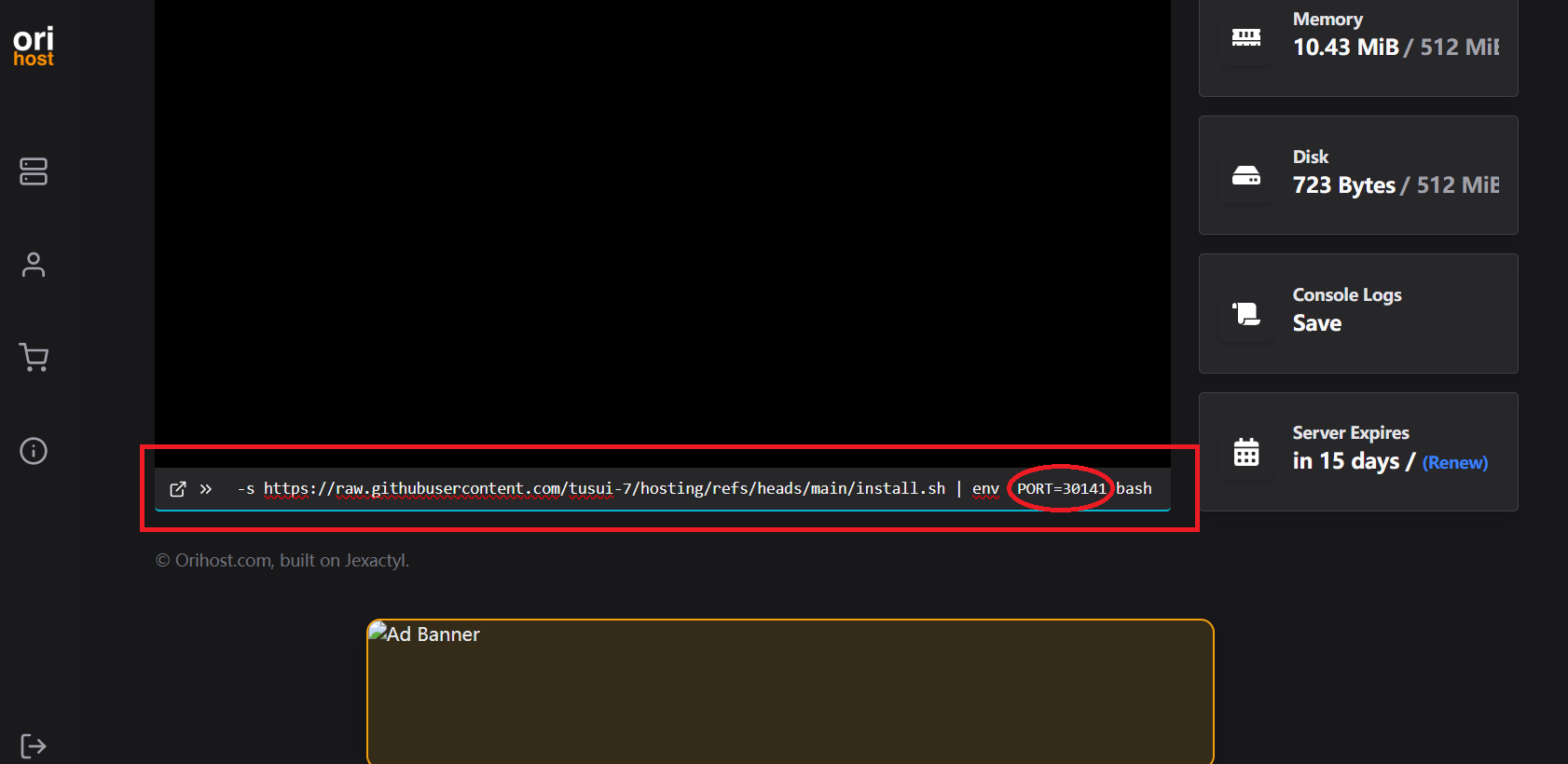
Wait until ‘is ok’ appears on the screen, then click the ‘restart button’ at the top right.
When the following text in image appears on the screen, Navidrome has started, Click ‘Address’ to copy the URL.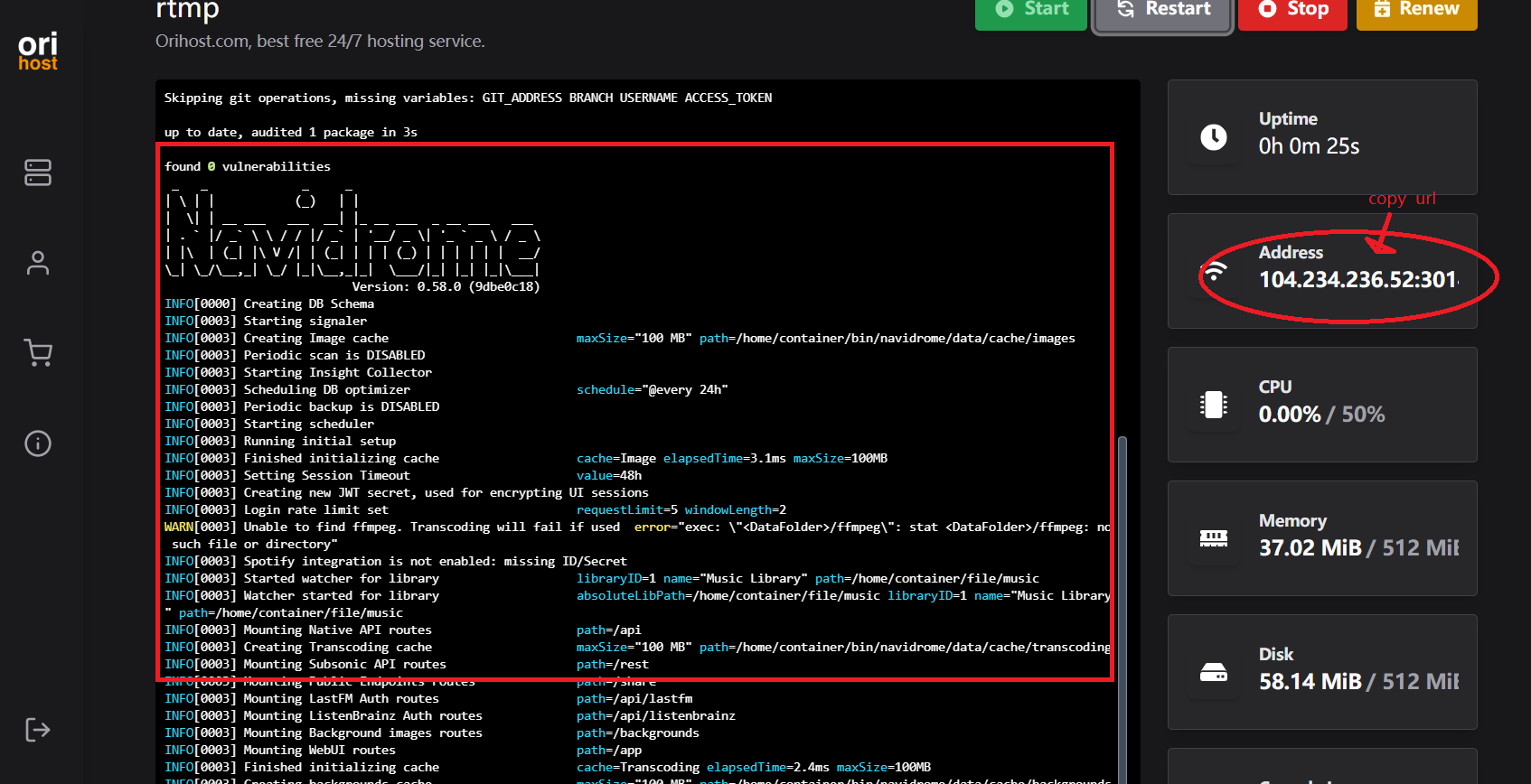
Enter the copied URL in the browser to access the Navidrome admin settings interface, where you can fill in your account and password.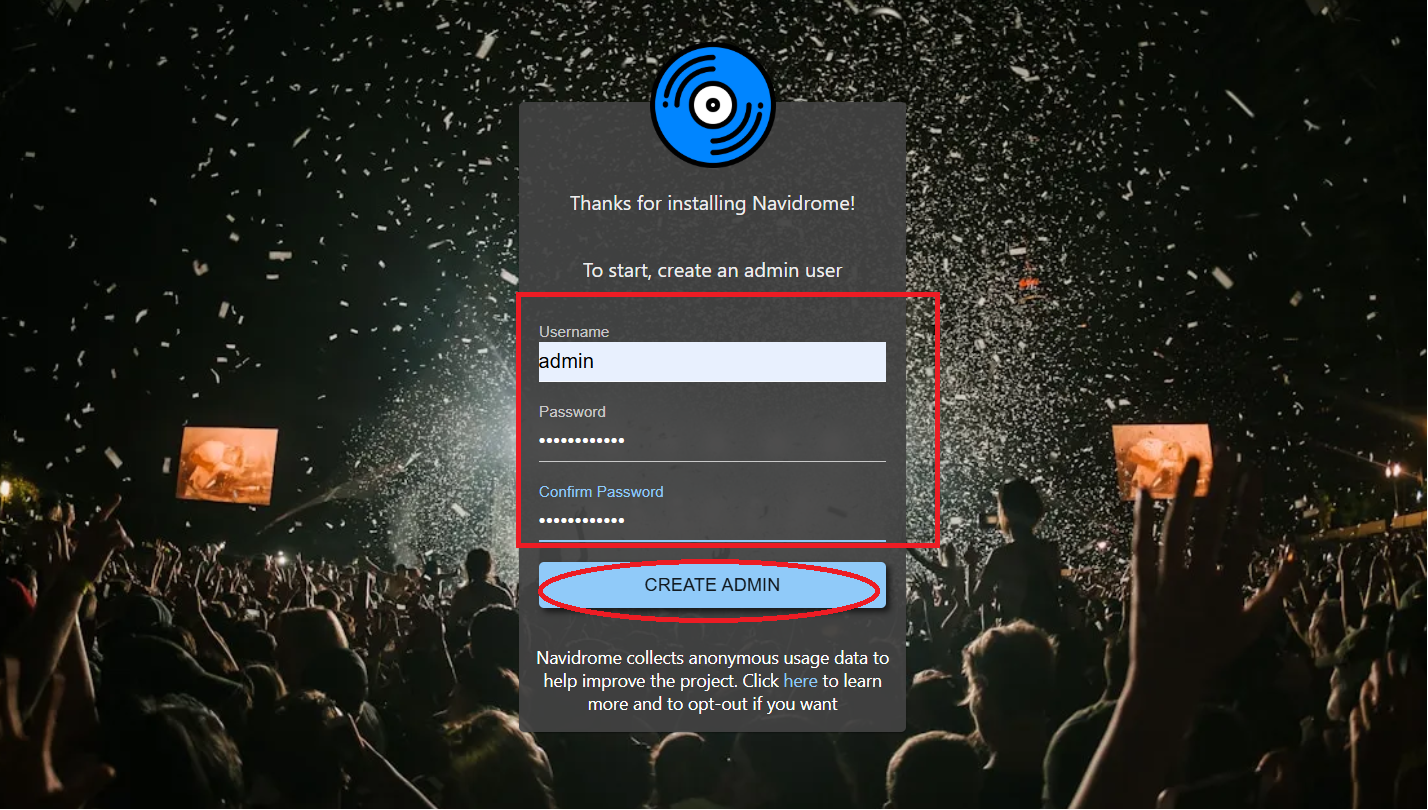
Go back to the ‘Files’ of panel.orihost.com, enter file/music, click ‘Upload’ to upload your favorite songs, and you will see the song in image below when it finished.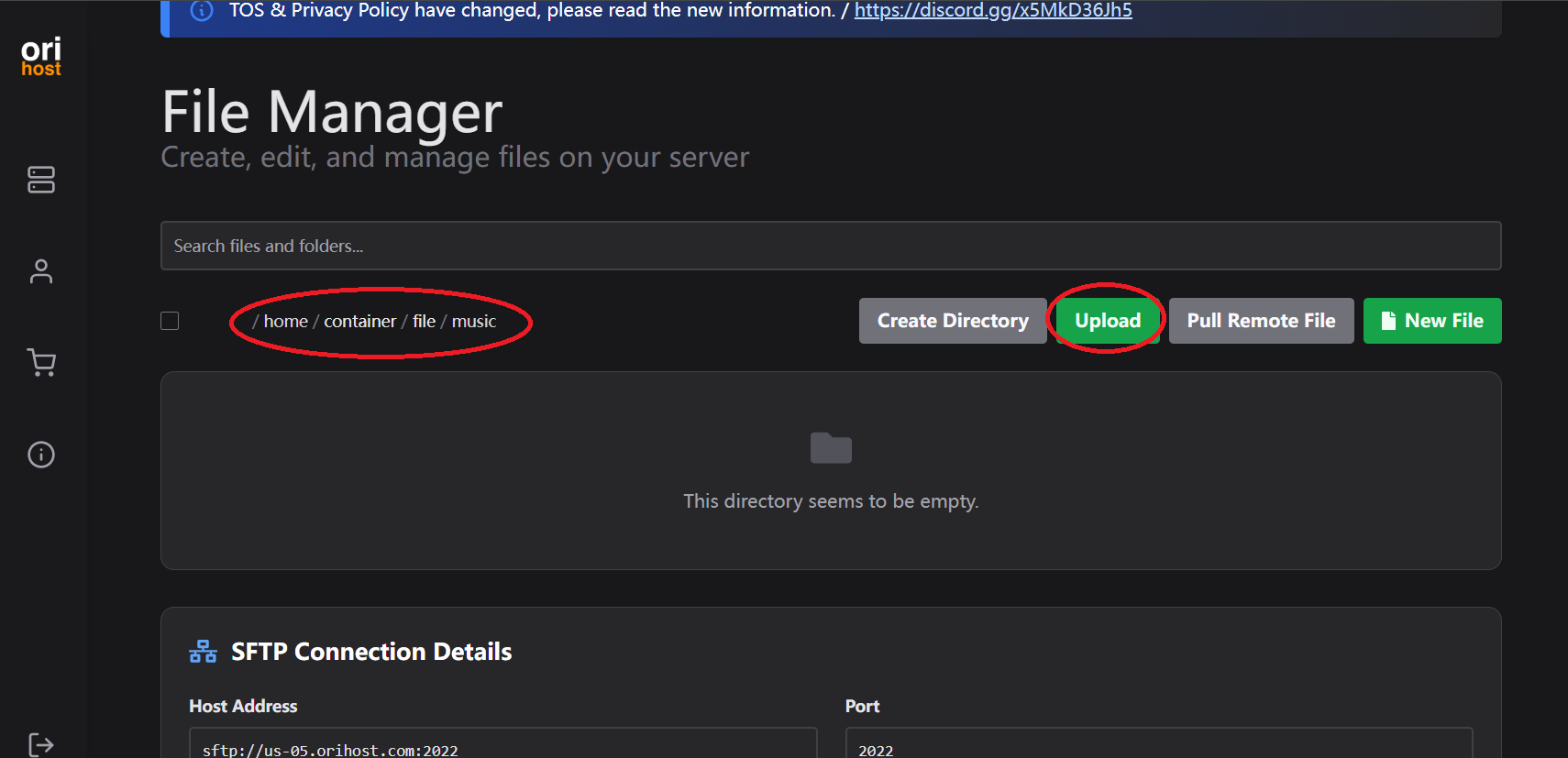
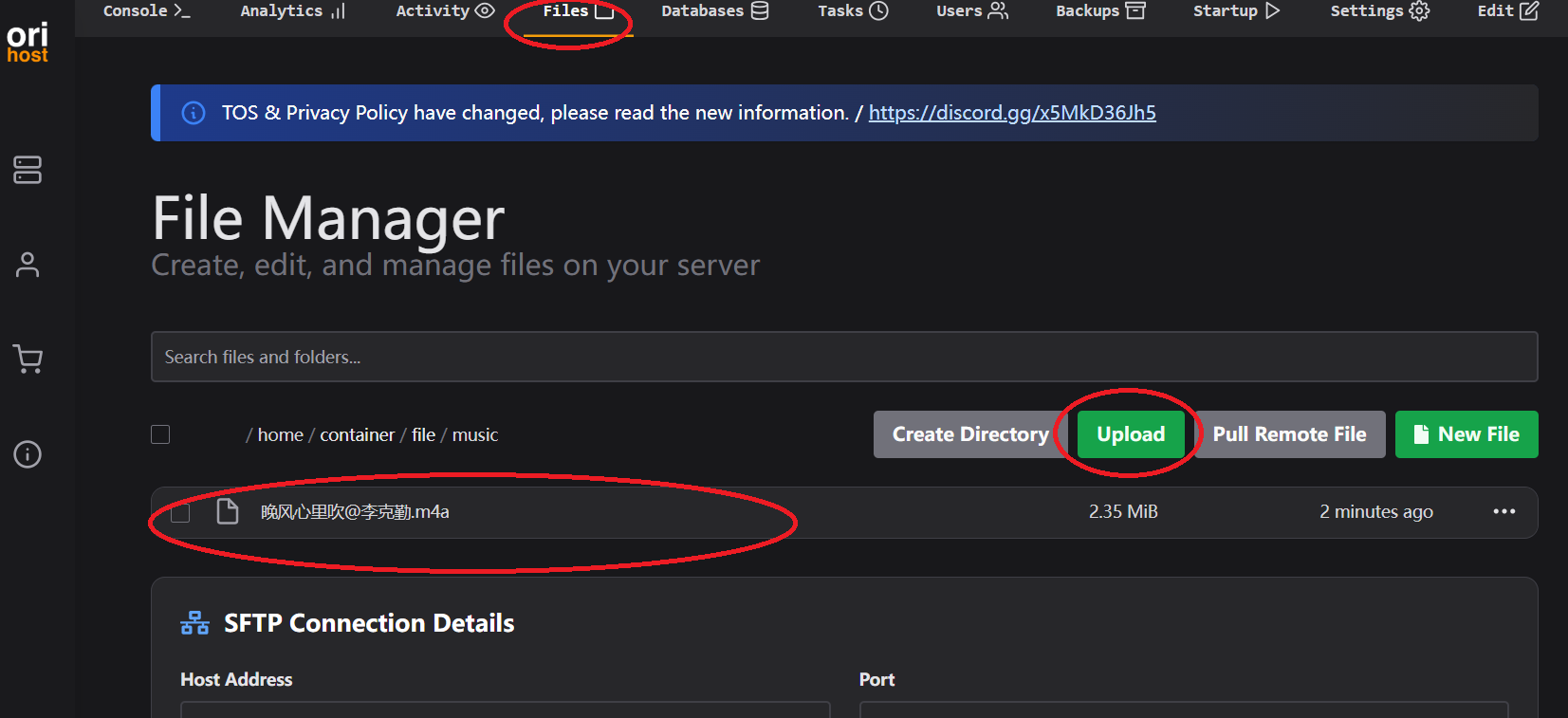
In the Navidrome page, click the button in the upper right corner, go to ‘Personal’, and switch the default English to your preferred language (e.g., Chinese).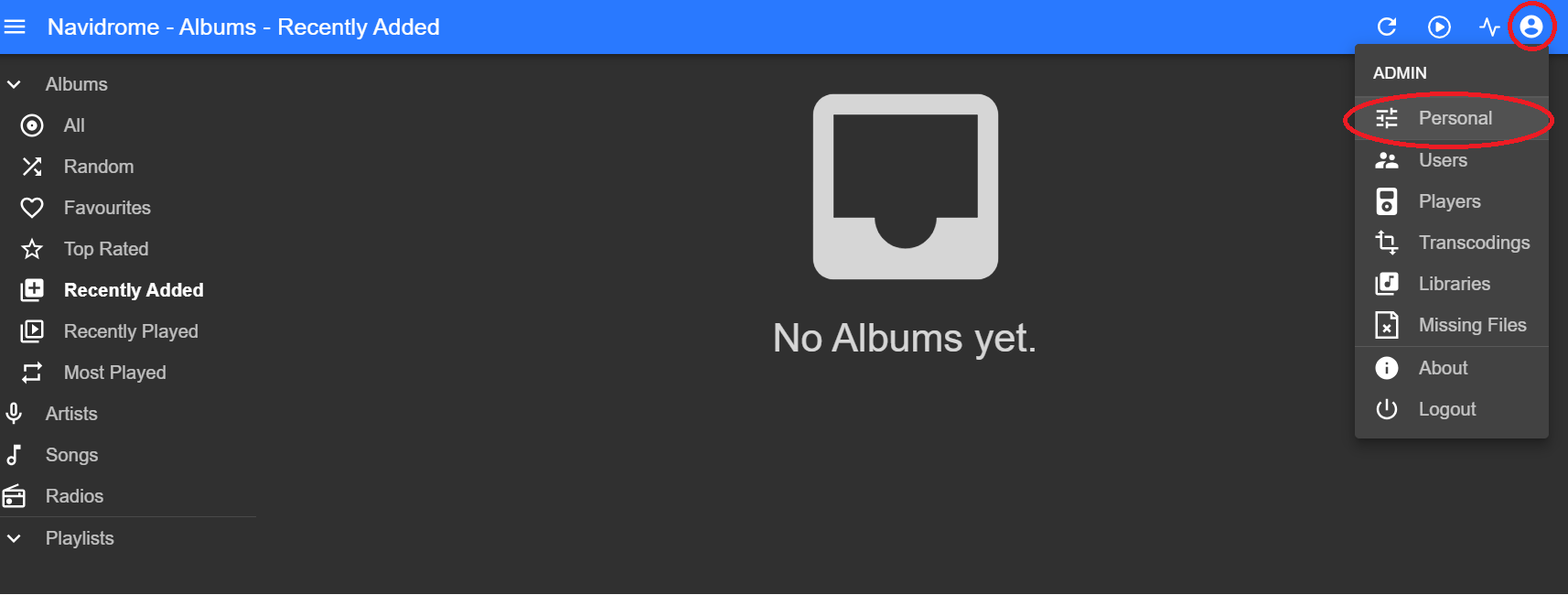
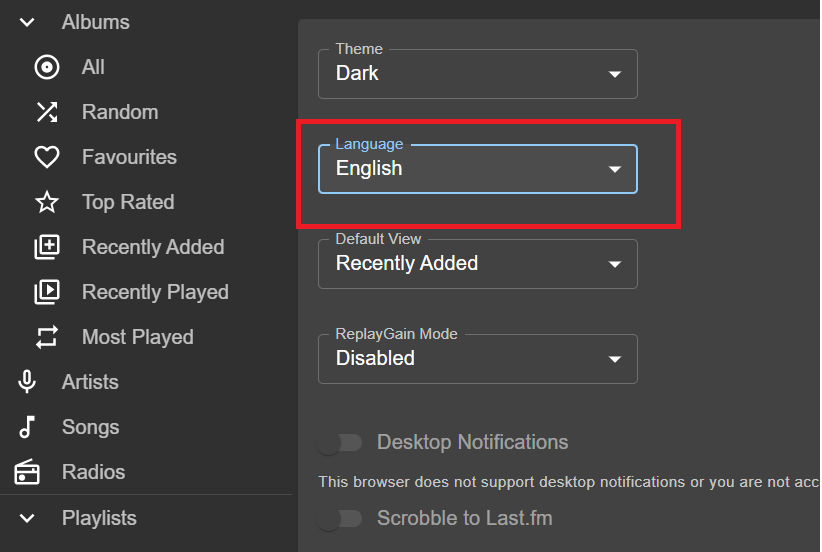
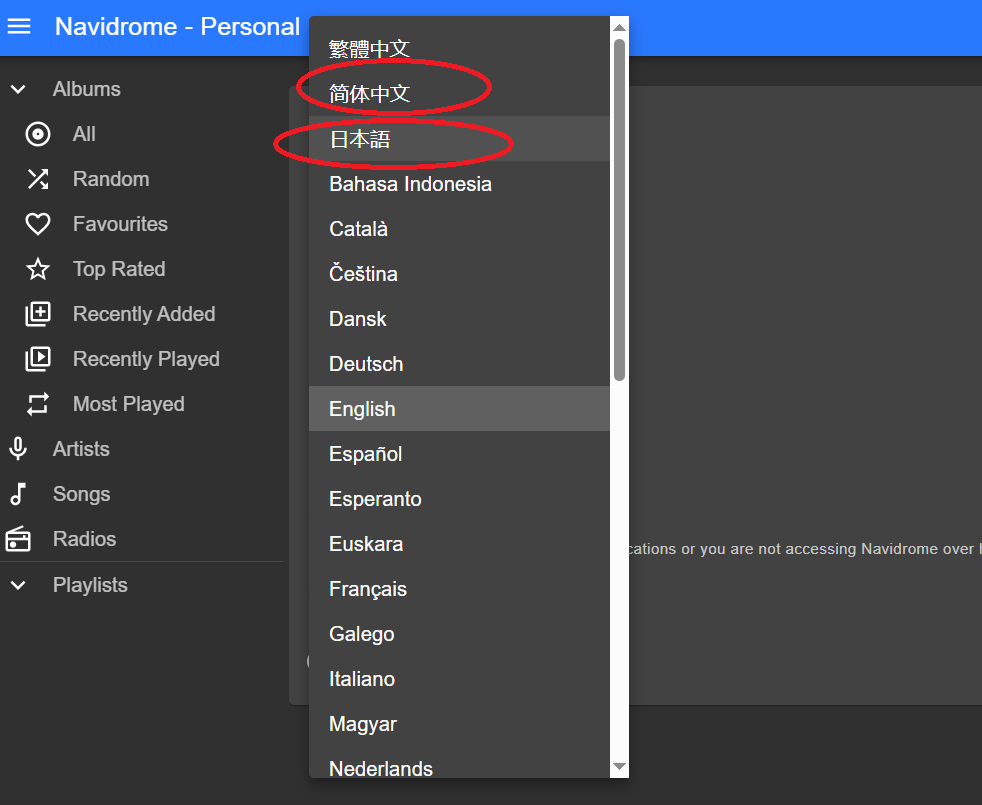
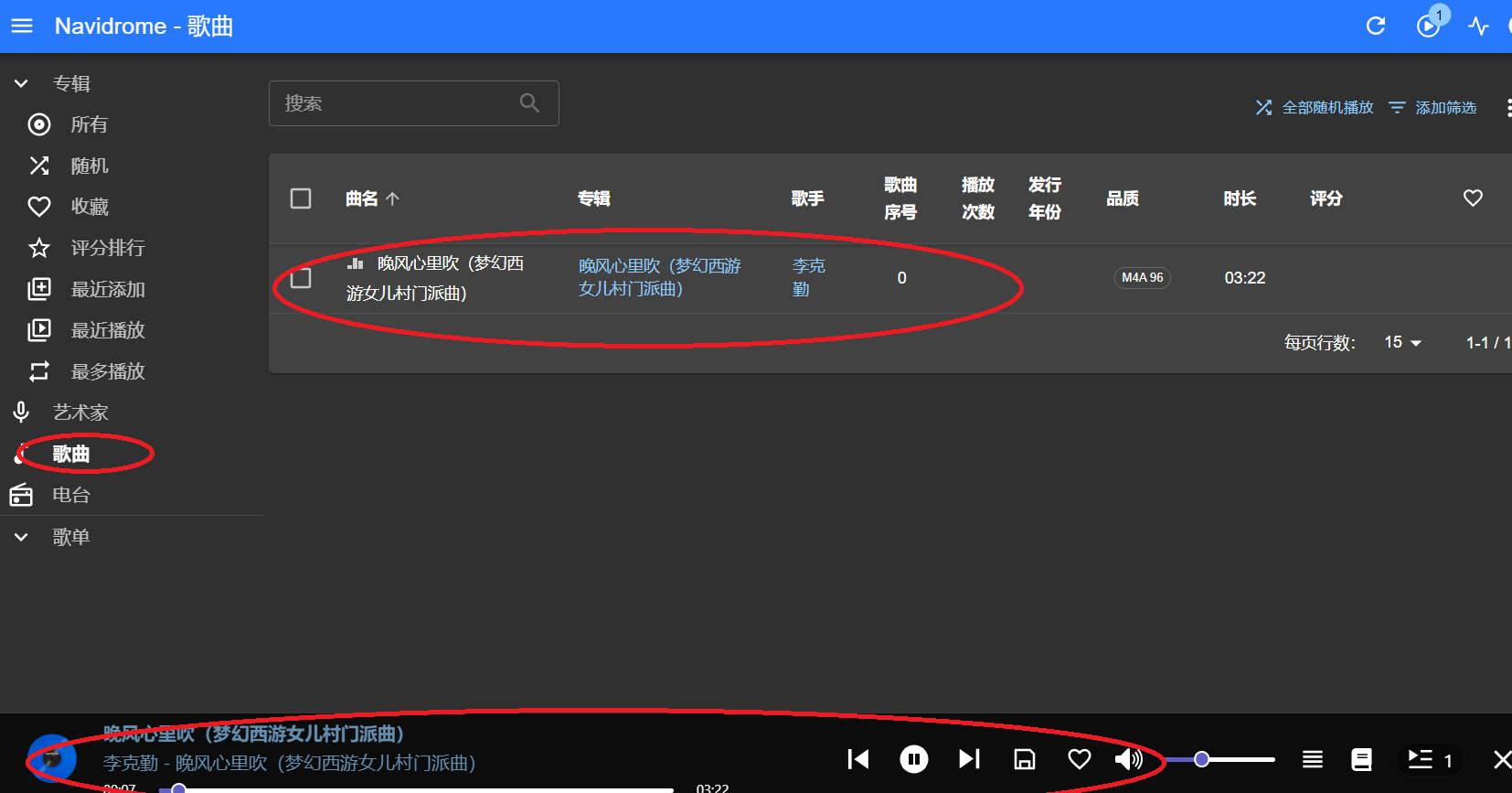
Next, click the left ‘song button’ on the image to see the your uploaded song. Click the song to play, and you can also research other Navidrome operations on your own.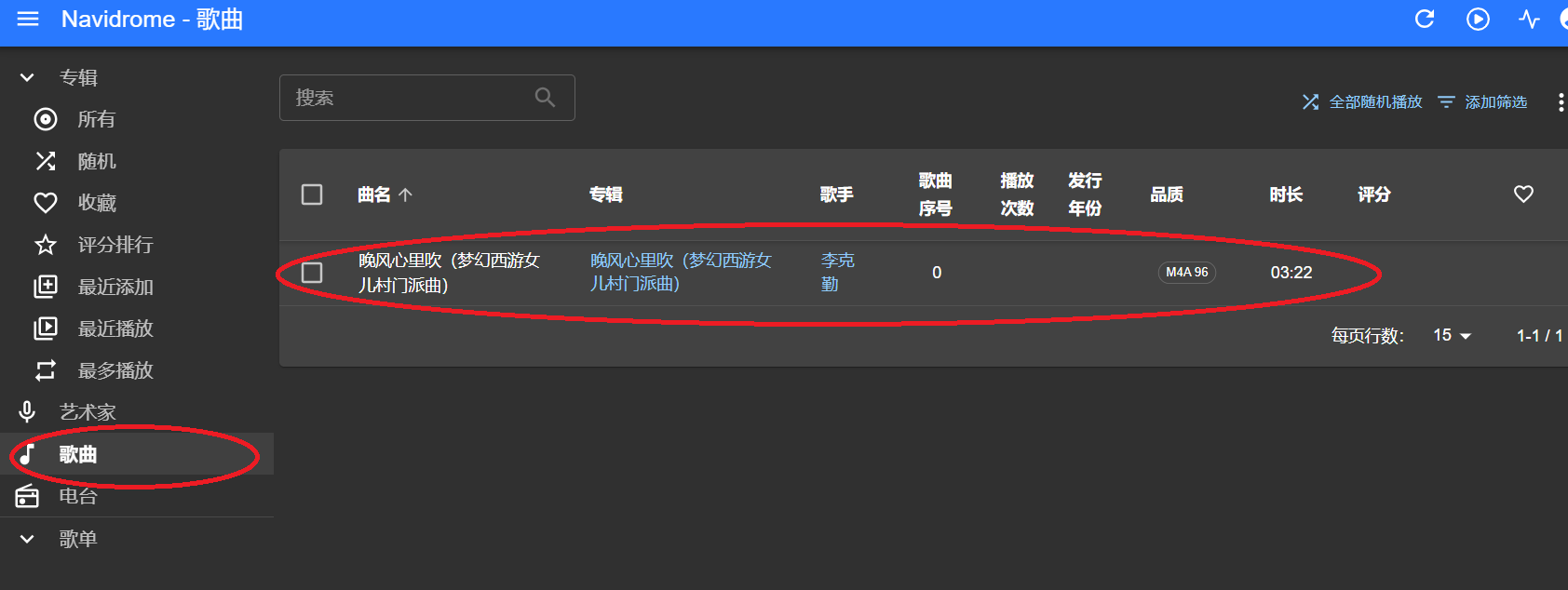
Summary
Free container need to be renewed, but Disk of container could storage about 400 songs, which is still quite good; Generally, server can run for a long time, if you want to require DNS和ssl, please jump to it.