Navidrome DNS and SSL come from Dynv6
Advantages and Disadvantages of Dynv6:
Advantages: Free, with API
Disadvantages: Only offer subdomains
Building Method
1.Sign up Dynv6
Open PAGE, Click right ‘Sign up’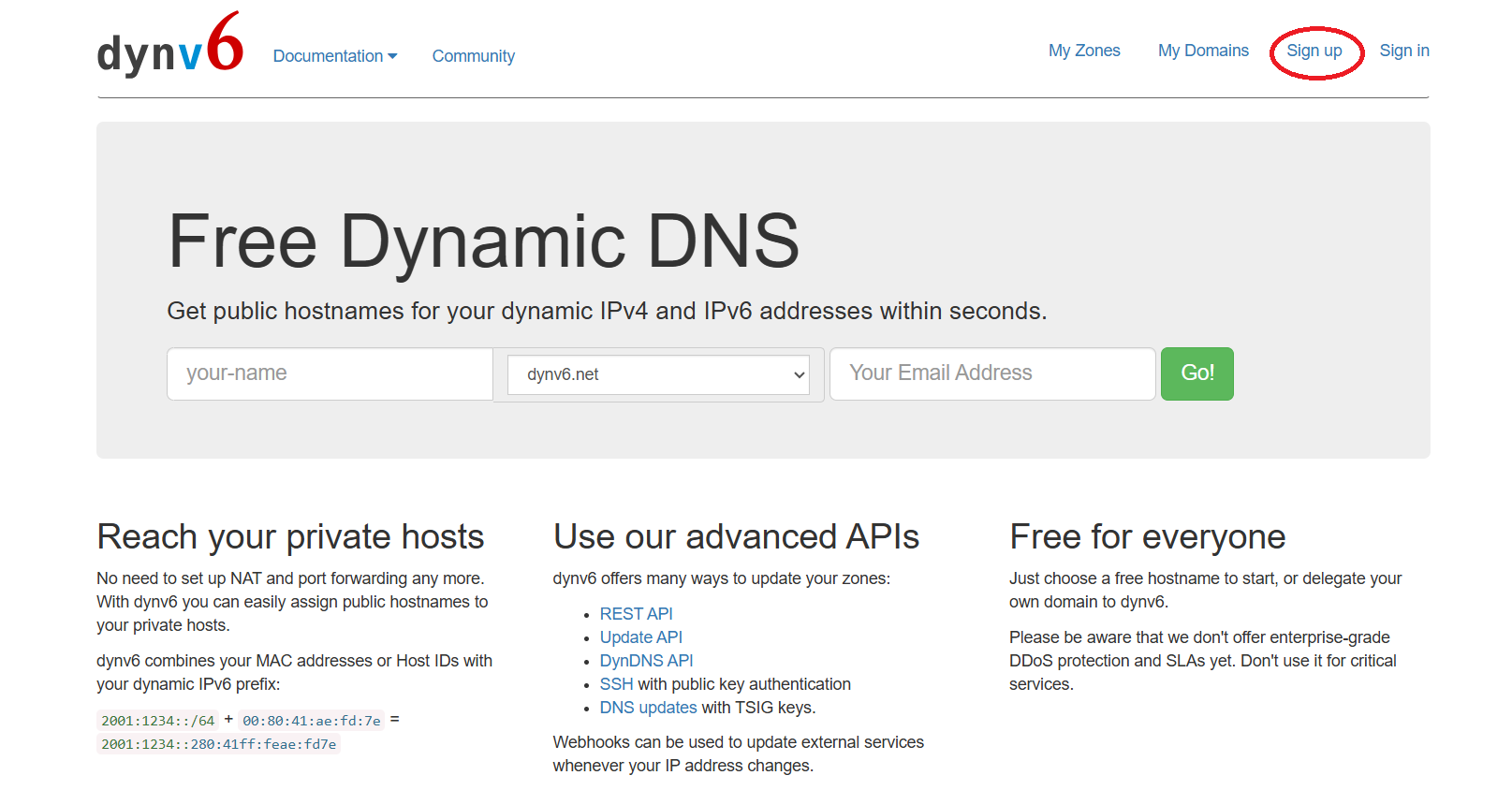
Enter the registration and fill in the information yourself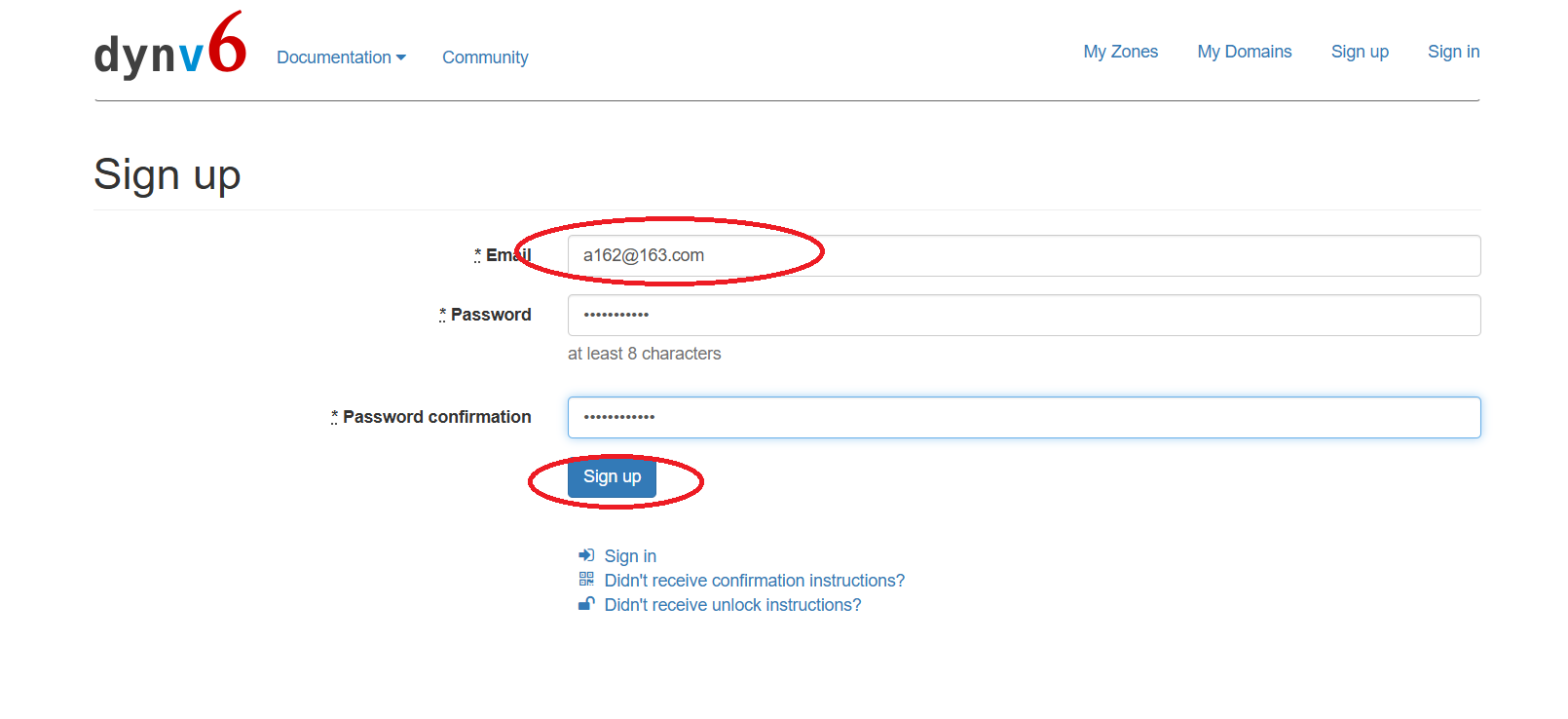
Go to your own email, and enter the verification link sent by dynv6 in your browser.
2.Log in Dynv6 and Create a TOKEN
Open Login PAGE, fill in your email and password to log in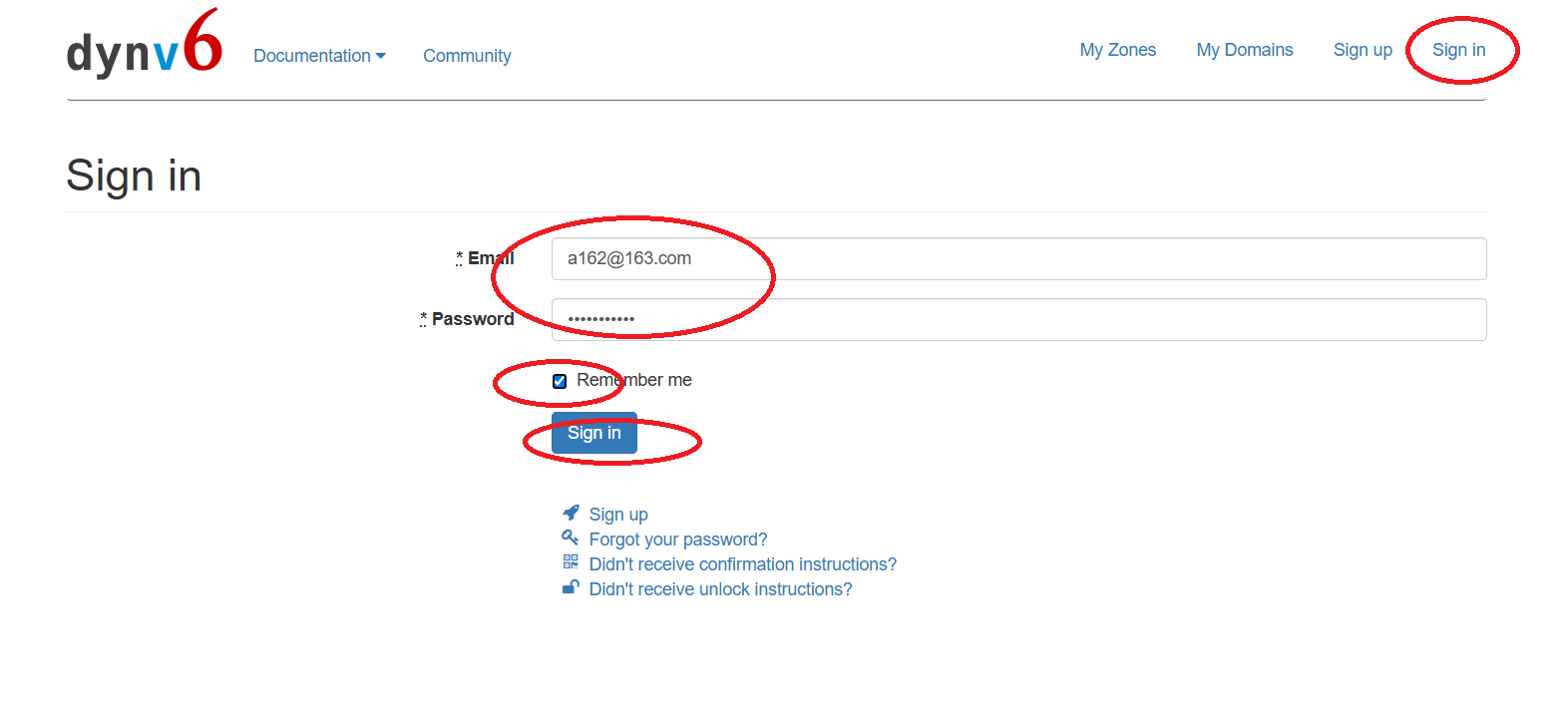
Jump to the My ZONE page and click ‘Create My Zone’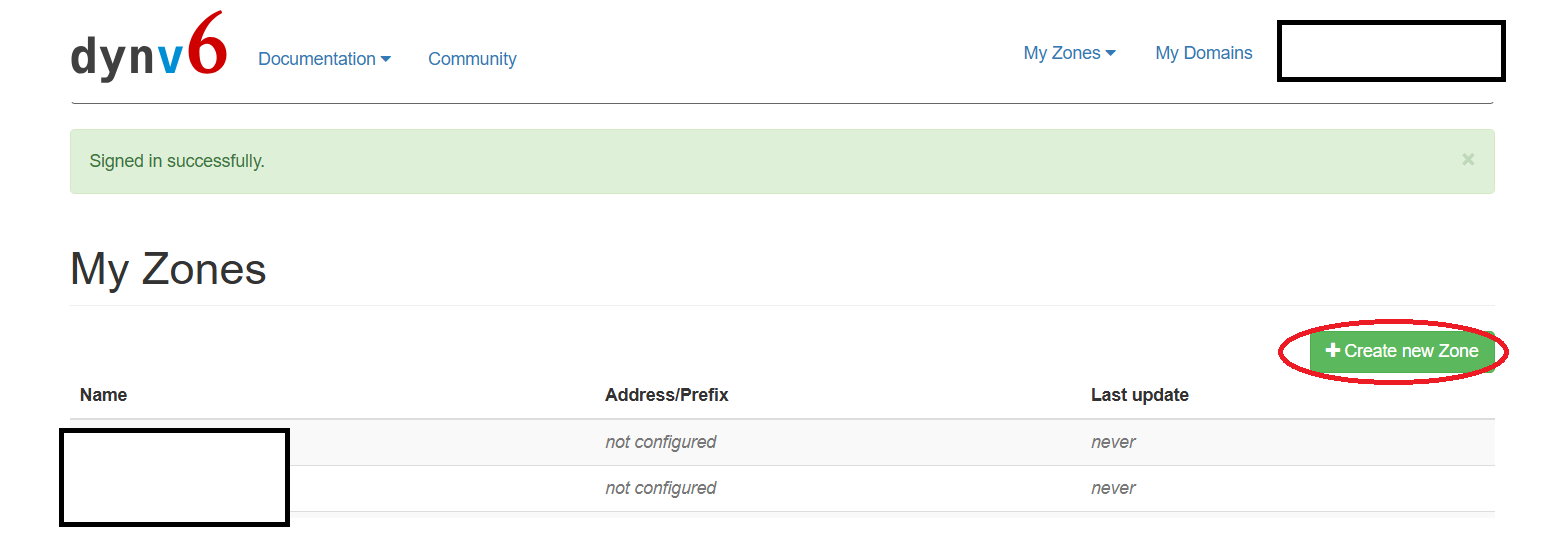
In ‘Create My Zone’ Page, fill in the name you want, the suffixes can be selected on the right, and click ‘CREATE ZONE’ below when you have done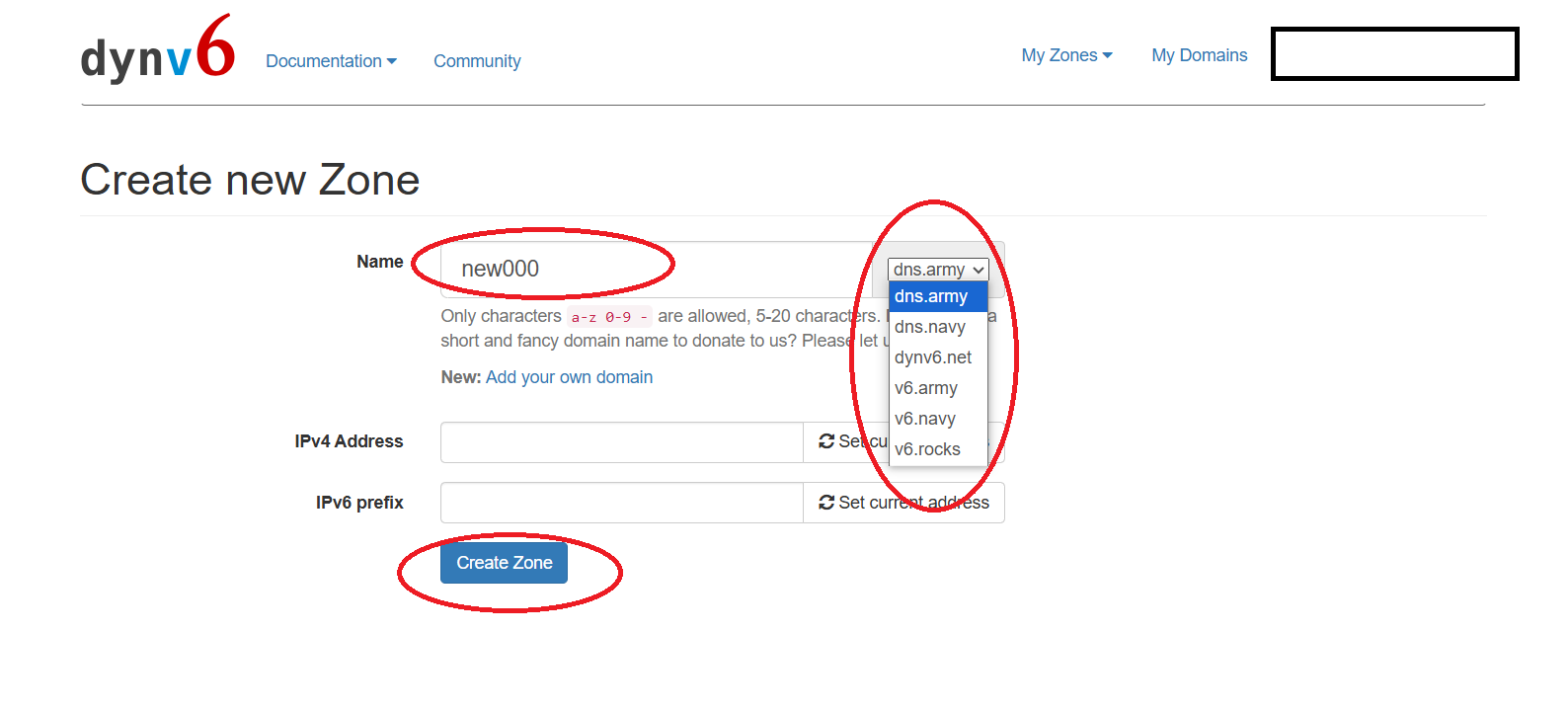
After completion, page will directly jump to the ‘Instructions’, then click on ‘Status’
Look at your ‘email’ at the top right, cilck it to pull down and click on ‘Keys’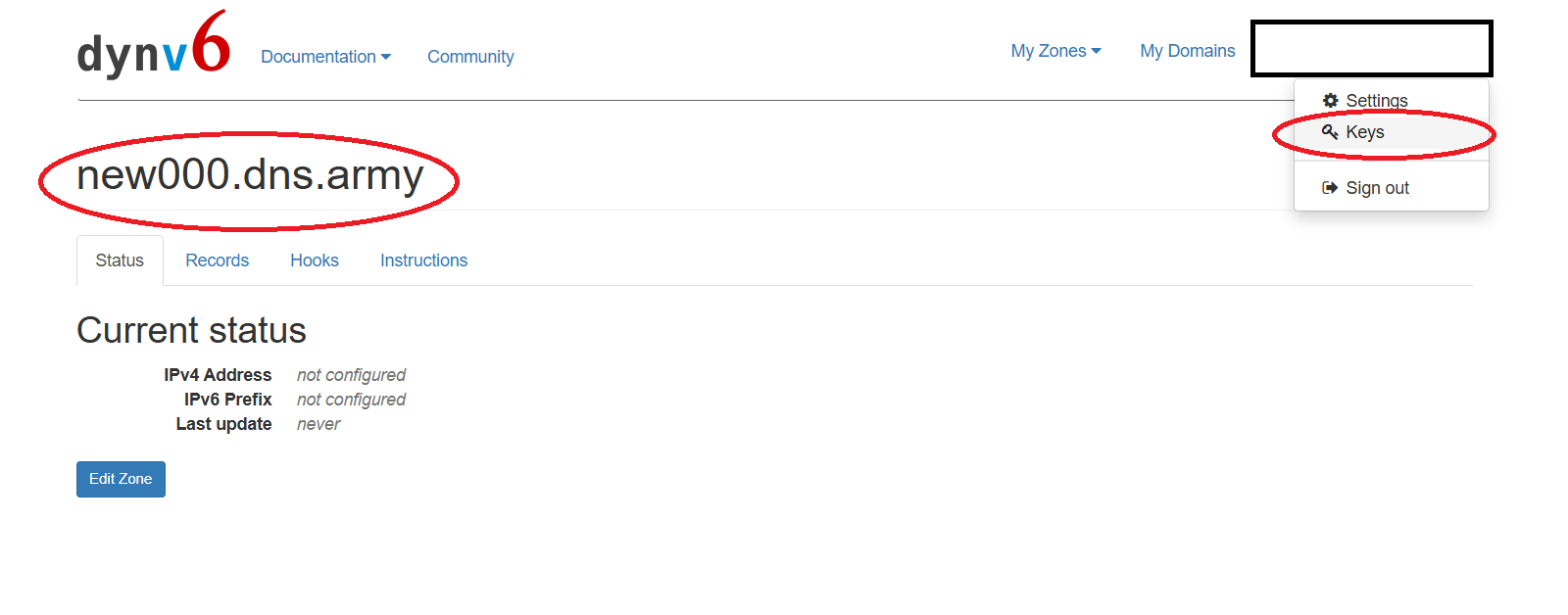
Page will come to the ‘You API Keys’, then click ‘Add HTTP Token’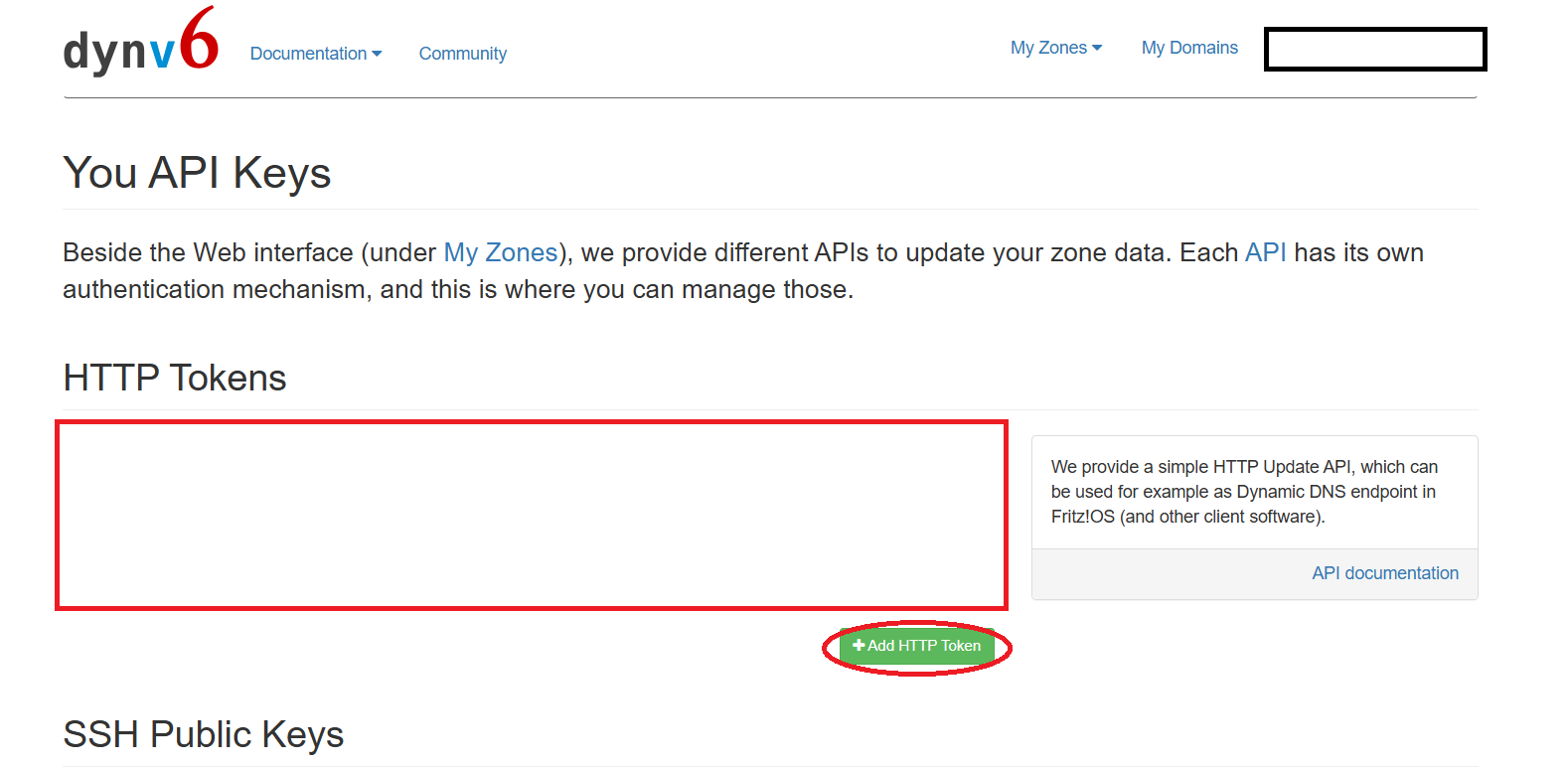
Page go to the ‘Add a new HTTP’, you can fill in any Name, select ALL or the domain you just registered for ZONE, and click ‘Generate HTTP Token’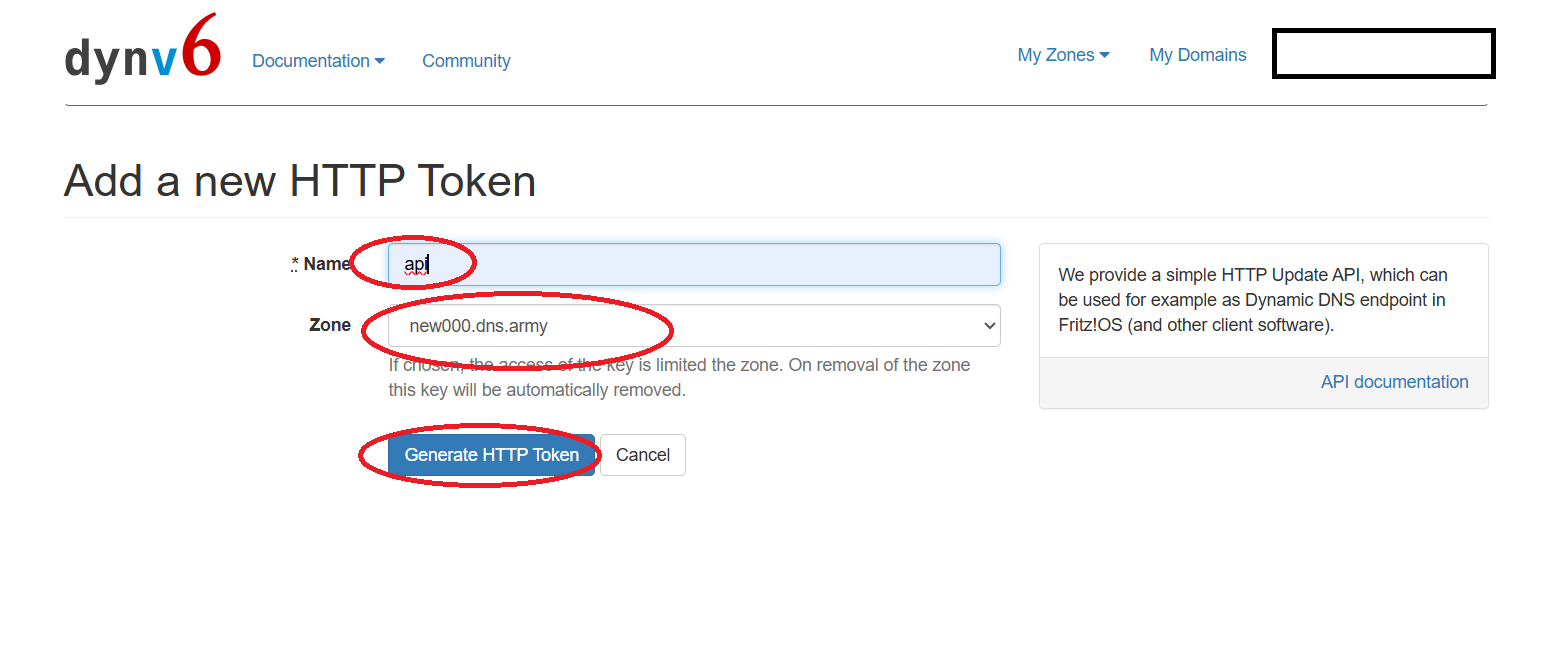
The page redirects to the ‘You API Keys’ again, where you can see the ‘name of API’ you just created under HTTP Tokens. Click ‘Details’ to see more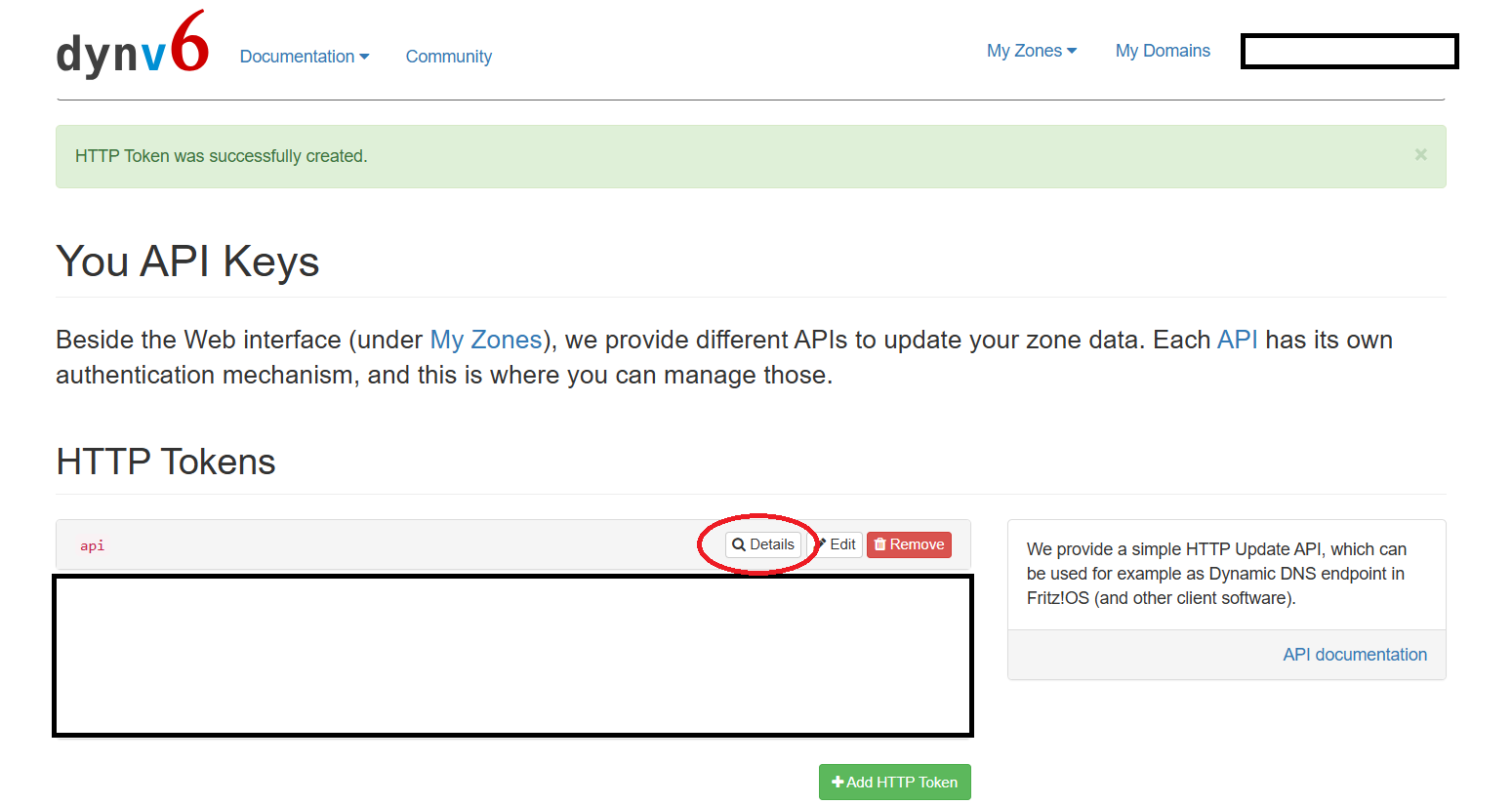
When seeing the token, click ‘COPY’ to copy it, and also copy the Zone, which will be needed later in deploying Navidrome.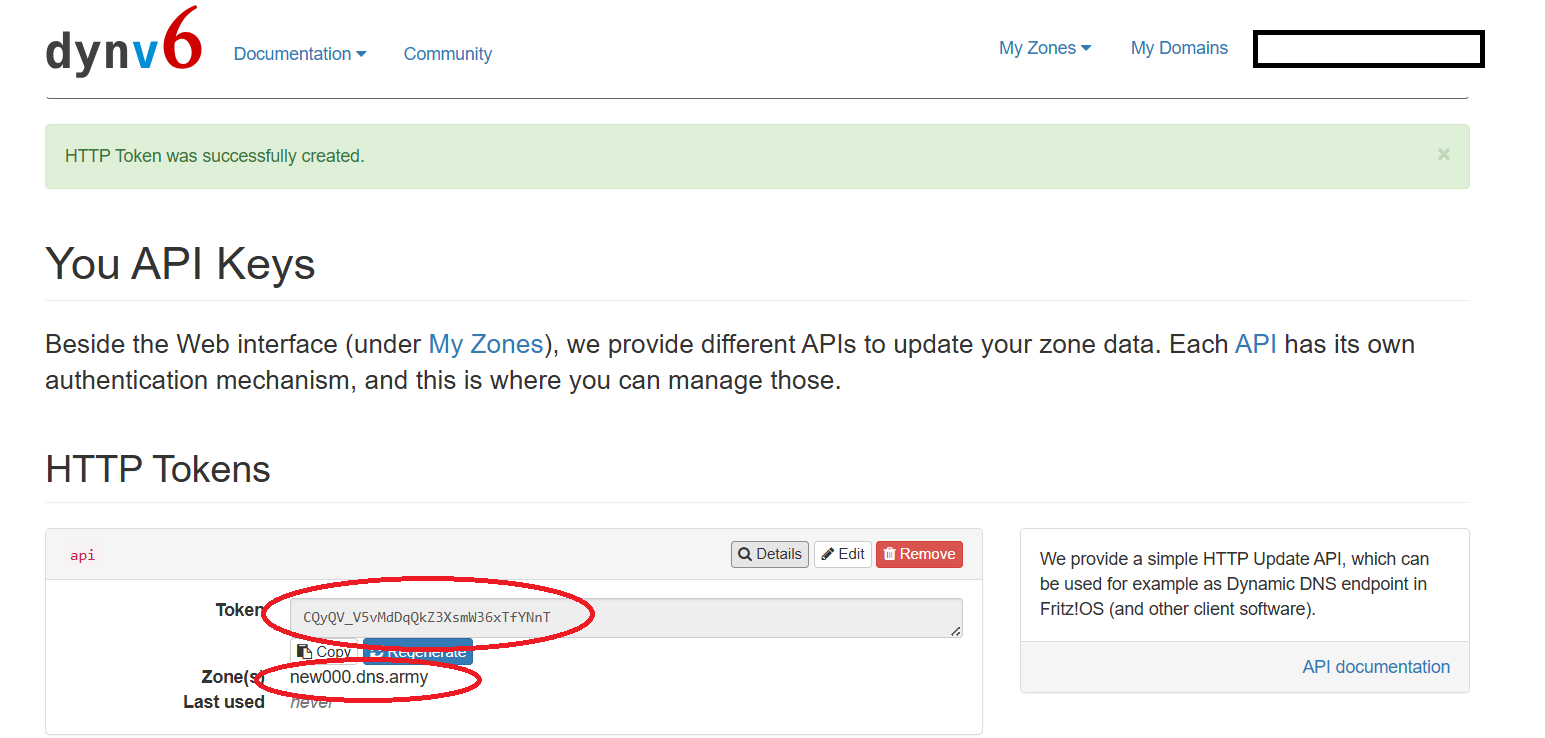
3.Navidrome deployment domain certificate
Free container of Orihost Builds Navidrome Click to see
Enter the installed container, where the name, IP, and port are displayed, and click on the name to access the console
In the console page, click on ‘Files’ to go to Files, and you will see the ‘index.js’ file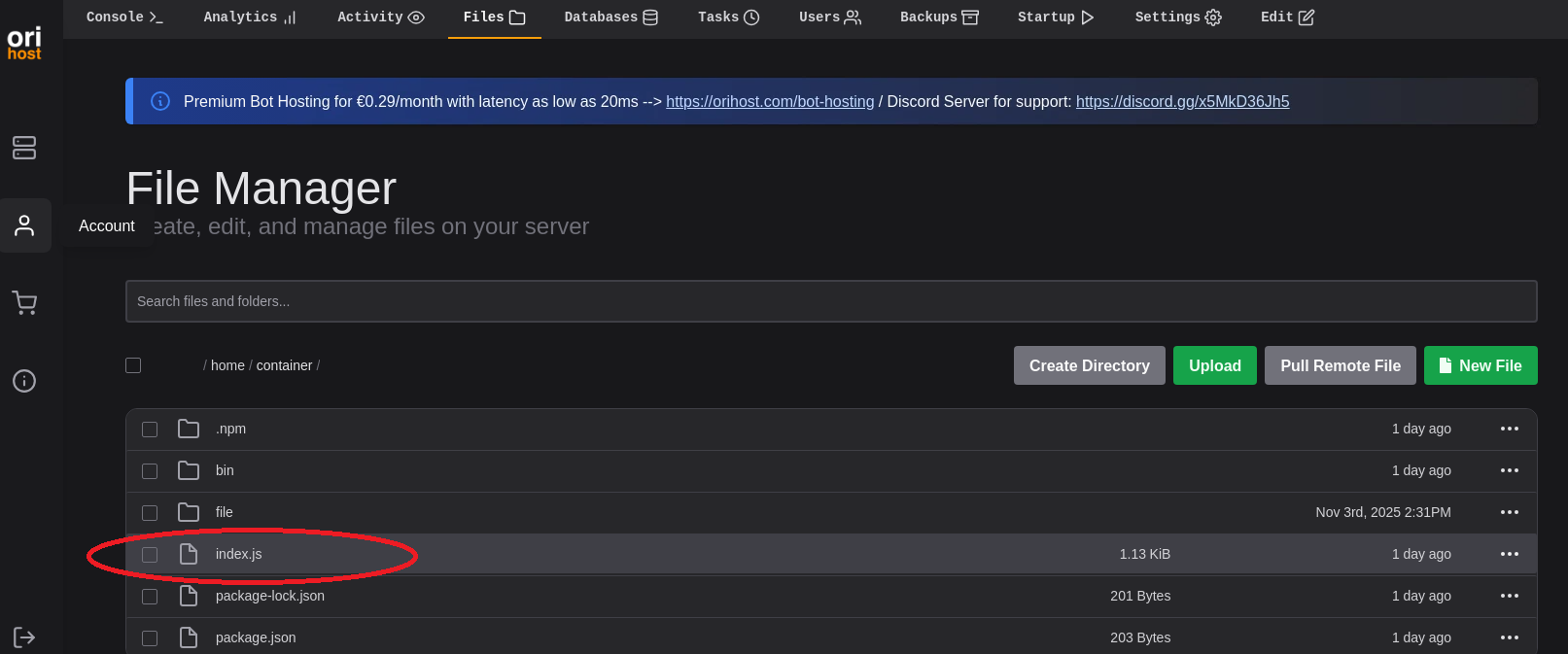
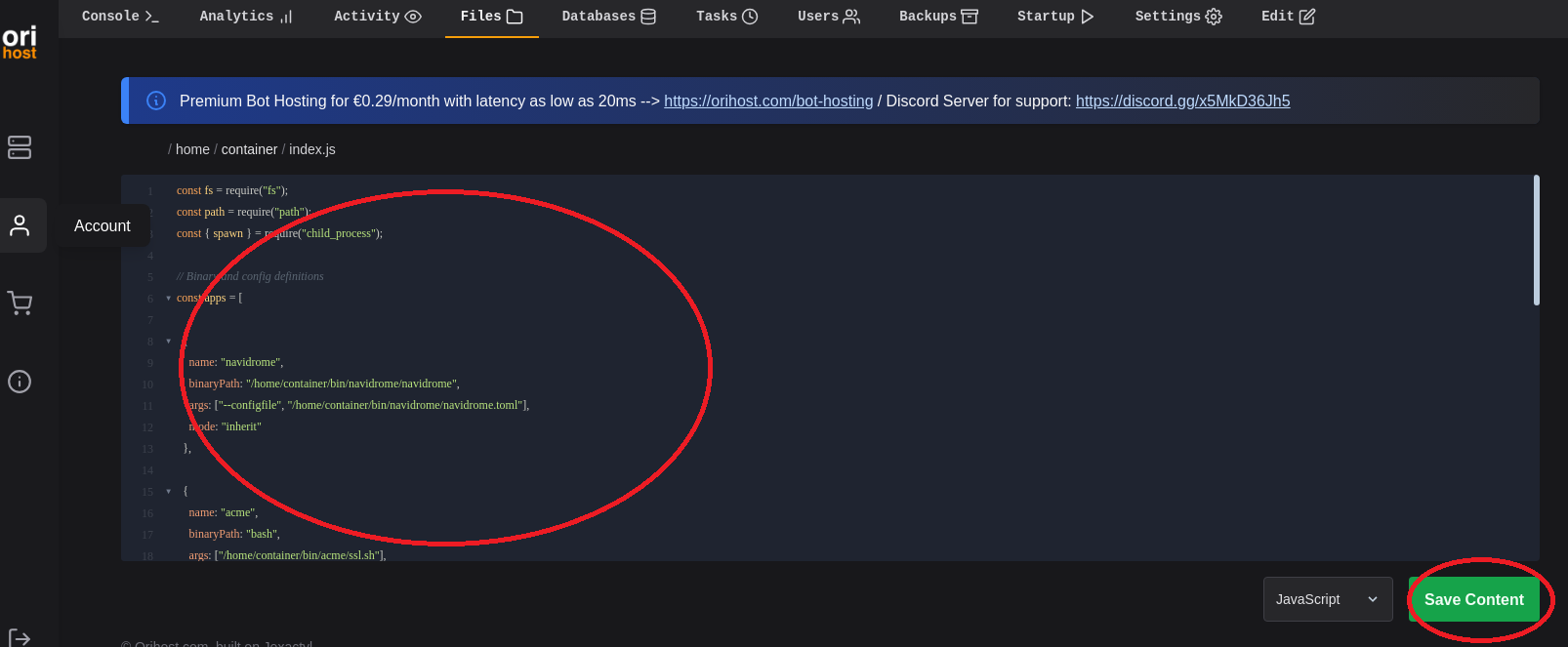
Double click ‘index.js’ files to edit it, copy the code below, or open the link index.js then click ‘Save’ to save
1 | |
Enter the ‘console’ interface, click ‘restart’ (or ‘start’) to launch, then click the Address below and copy the port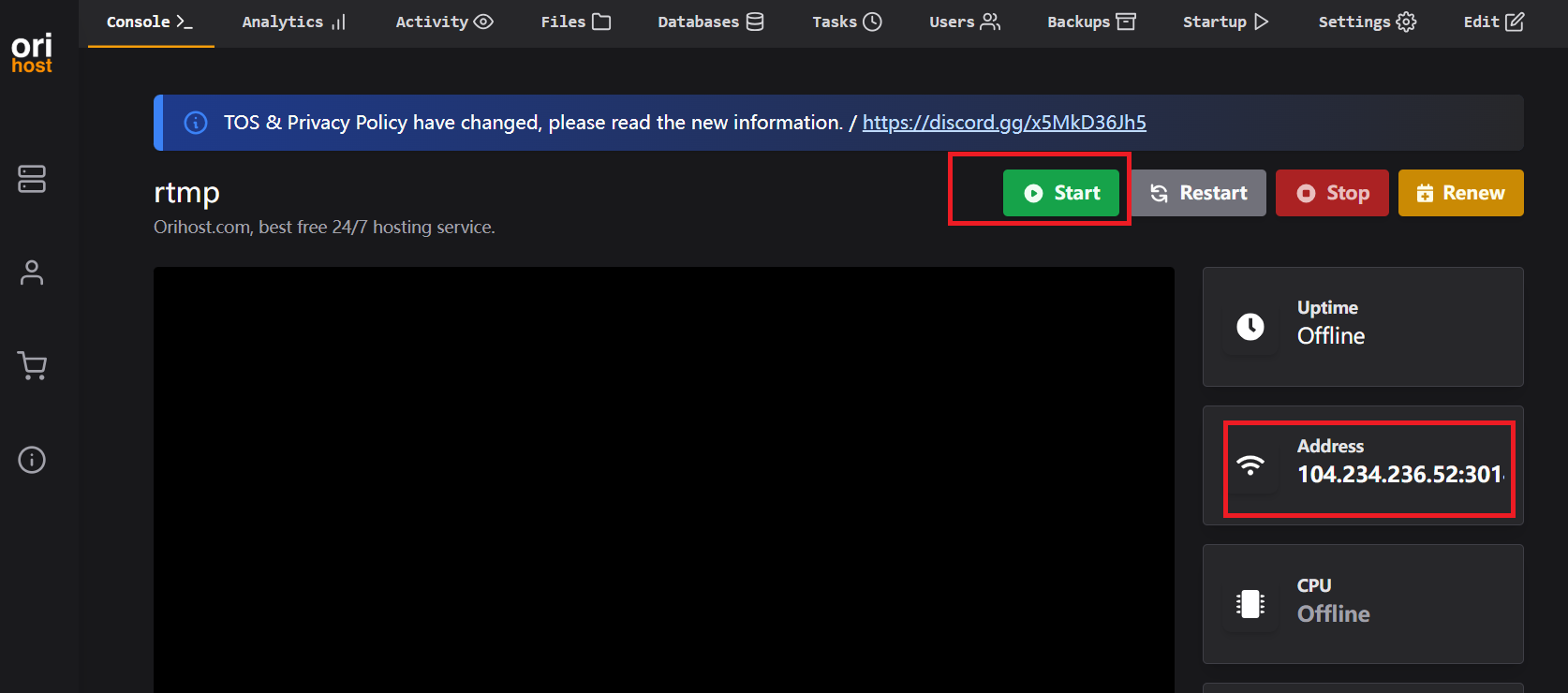
After the text on the screen stops, modify and copy the code below into the interface
Key points: Replace DYNV6_TOKEN with your own TOKEN, DYNV6_DNS with your own domain name, and PORT with the number from your Address (for example, 30141), then press the ENTER key.
1 | |
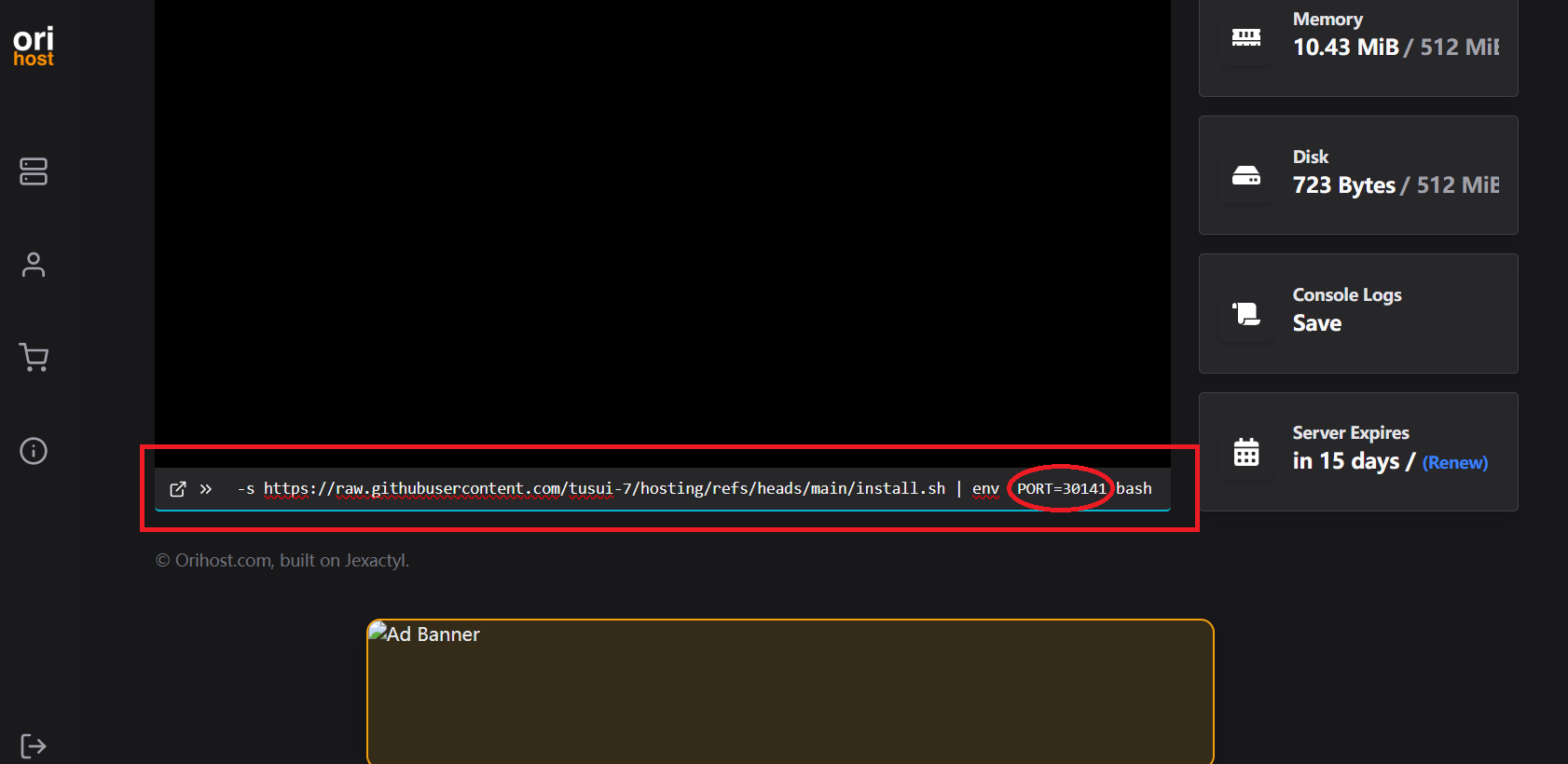
Since it need to obtain the certificate, you should see the text ‘Your cert is in’ (if you don’t see it, just repeat the steps above) and then clicking ‘restart’ at the top right
Note: If you have not successfully applied for the certificate (not see ‘Your cert is in’), just repeat the steps above.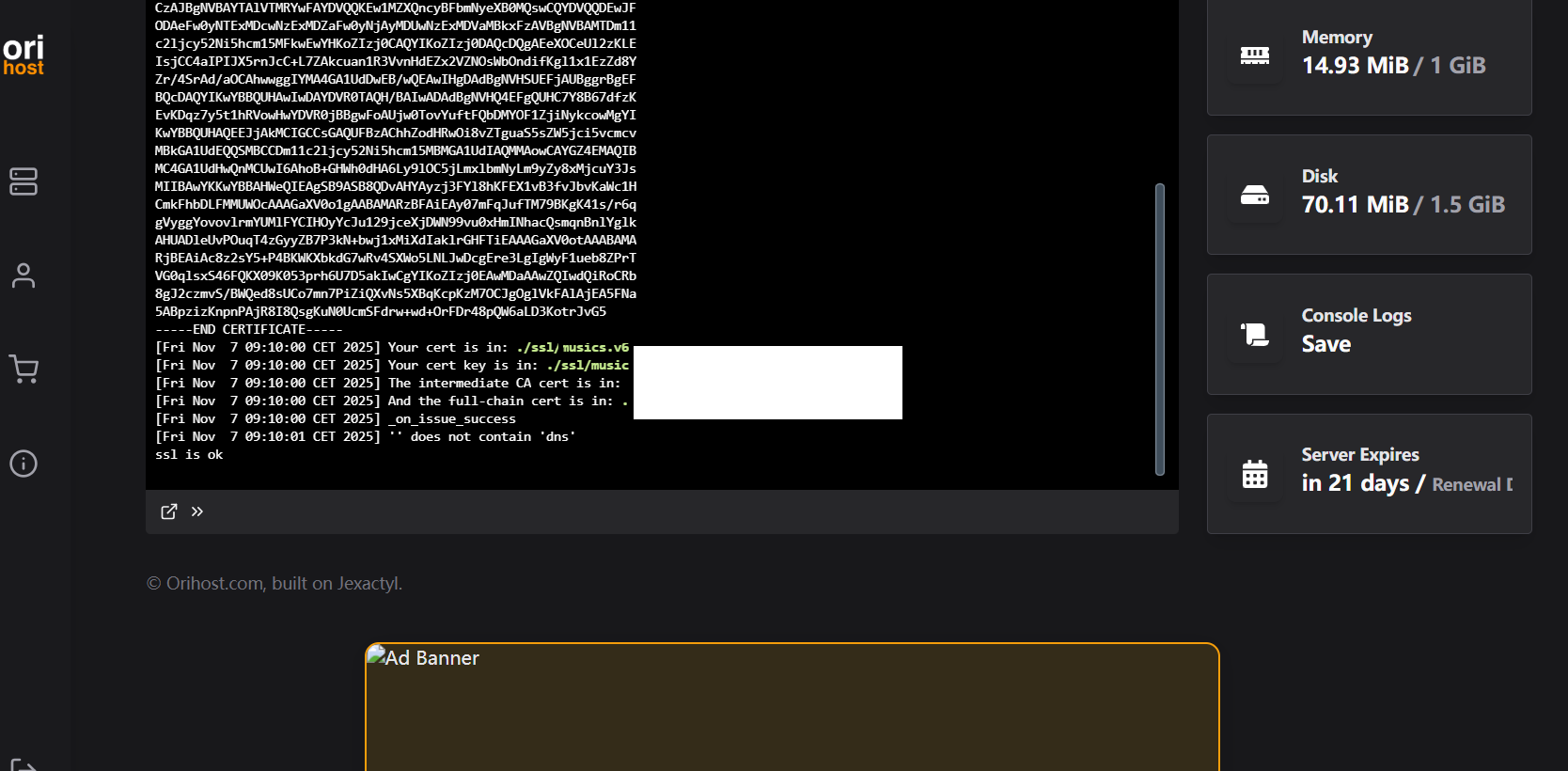

When the text below appears on the screen, it means everything is okay.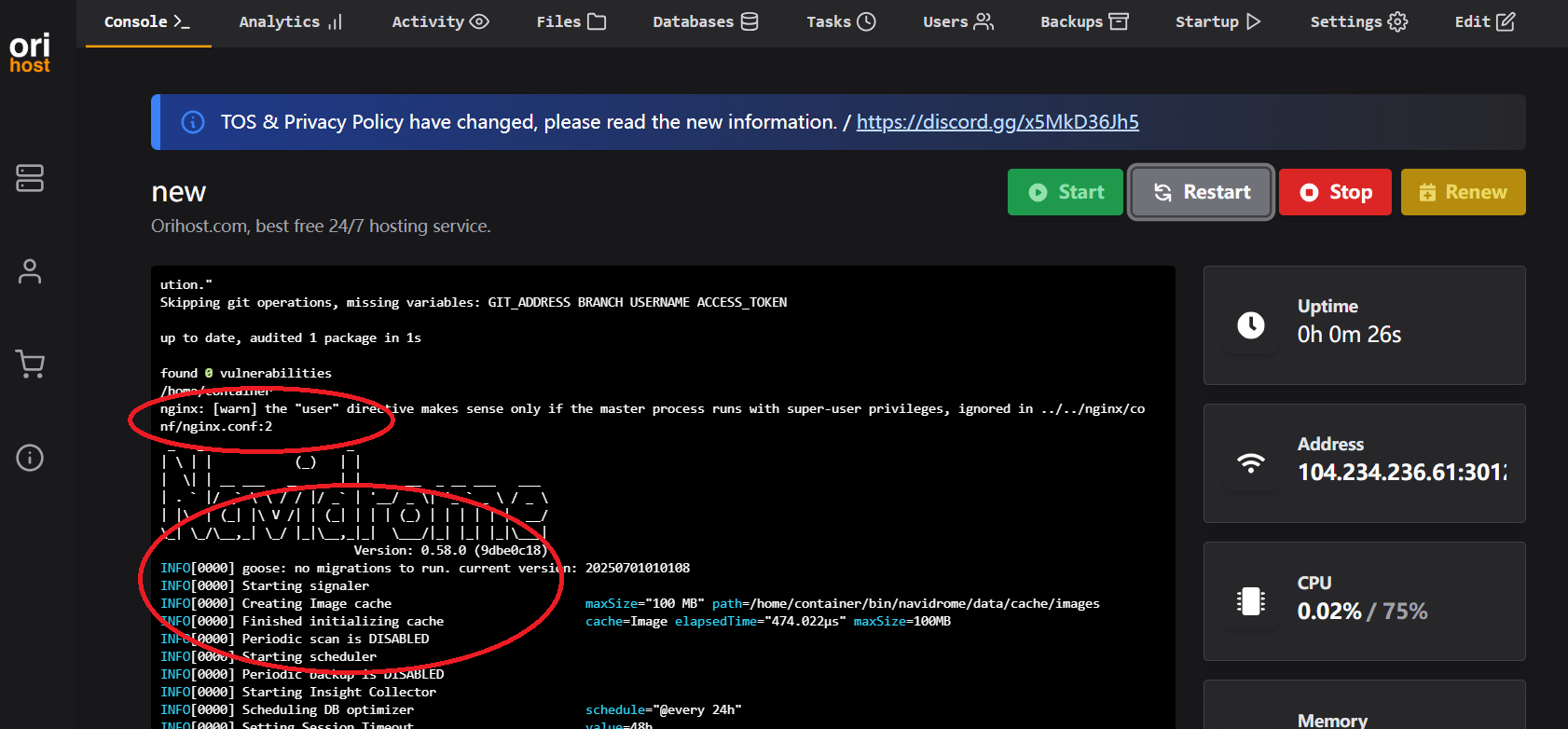
Enter the ‘https://domain:port‘ in the browser
1 | |
It’s Navidrome with a domain certificate.
Summary
Dynv6 is free, the certificate renews automatically, so you can enjoy happily.